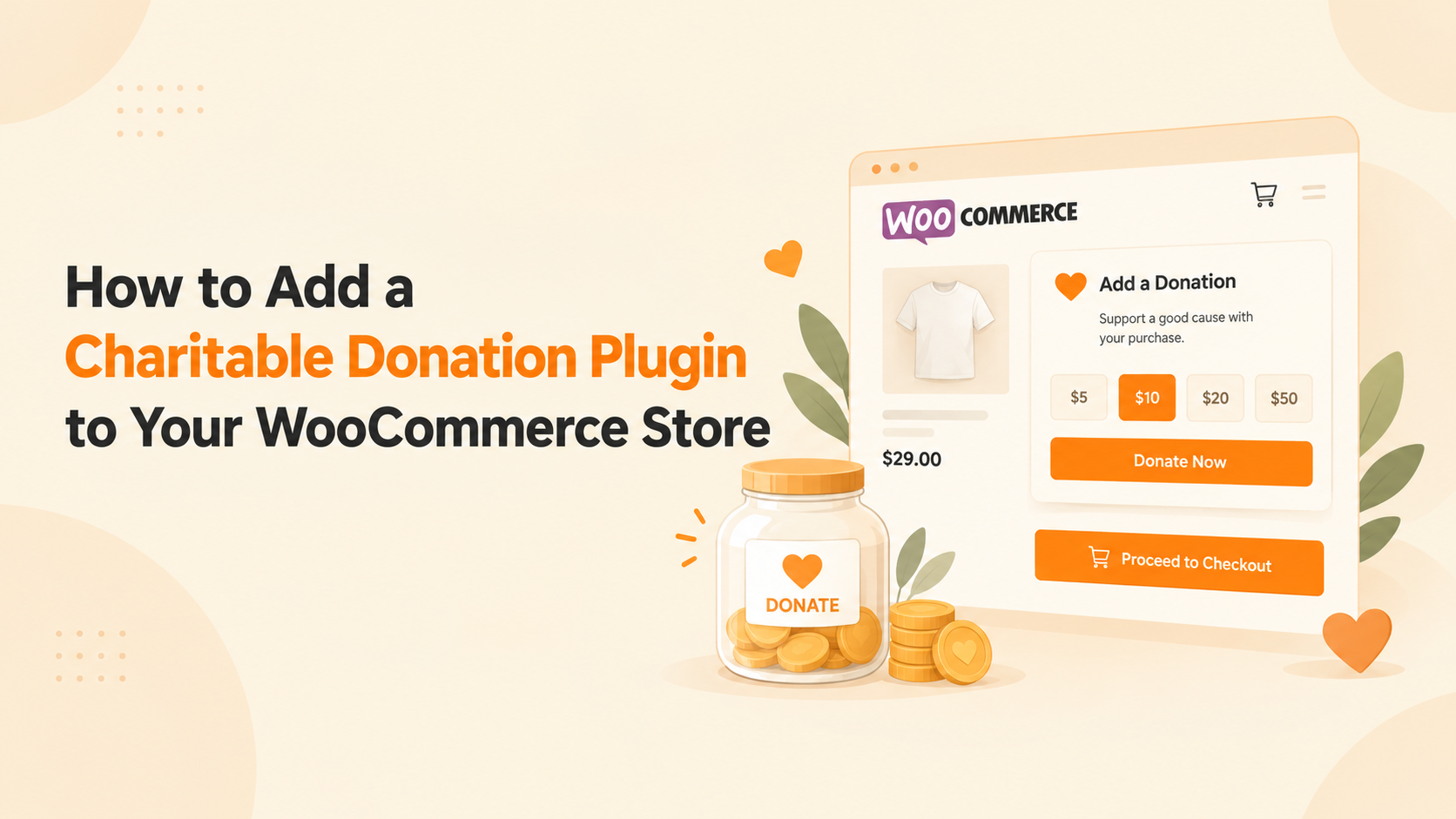
Your customers already trust your store. But when they want to support a cause, WooCommerce gives them nowhere to do it. WooCommerce can sell almost anything, yet it has no built-in donation field. Every supporter who wants to give but cannot is a missed gift.
Donation for WooCommerce, a fundraising plugin by WPExperts, fixes this for two reasons:
- Everything stays in one place. Donations appear in your WooCommerce Orders, use your existing payment gateways, and can be refunded like any other order.
- You get real fundraising tools. Add goal progress bars, a donor wall, checkout prompts, and recurring gifts (recurring needs WooCommerce Subscriptions).
To add the charity feature to your WooCommerce store, install and activate the donation plugin. Then create a campaign, set donation amounts, and embed the campaign on a page. The steps below walk you through each step, from installation to your first test donation.
Step 1: Install and Activate Donation for WooCommerce
- Go to Plugins → Add New in your WordPress dashboard.
- Select Upload Plugin and choose the plugin’s .zip file.
- Click Install Now, then Activate.
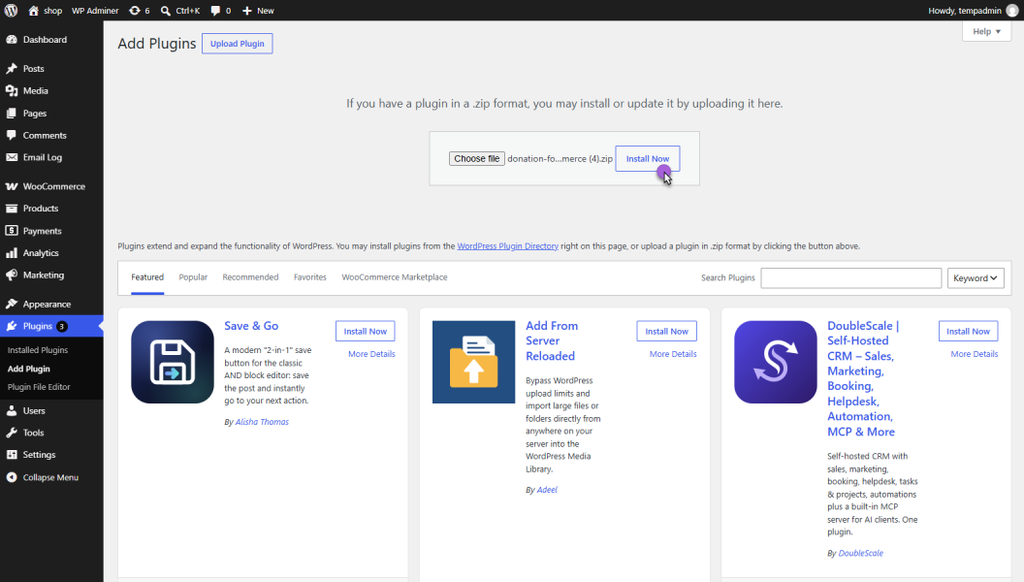
A new WC Donation menu with a heart icon appears in your admin sidebar. Everything below starts from that menu.
Step 2: Create Your First Donation for WooCommerce Campaign
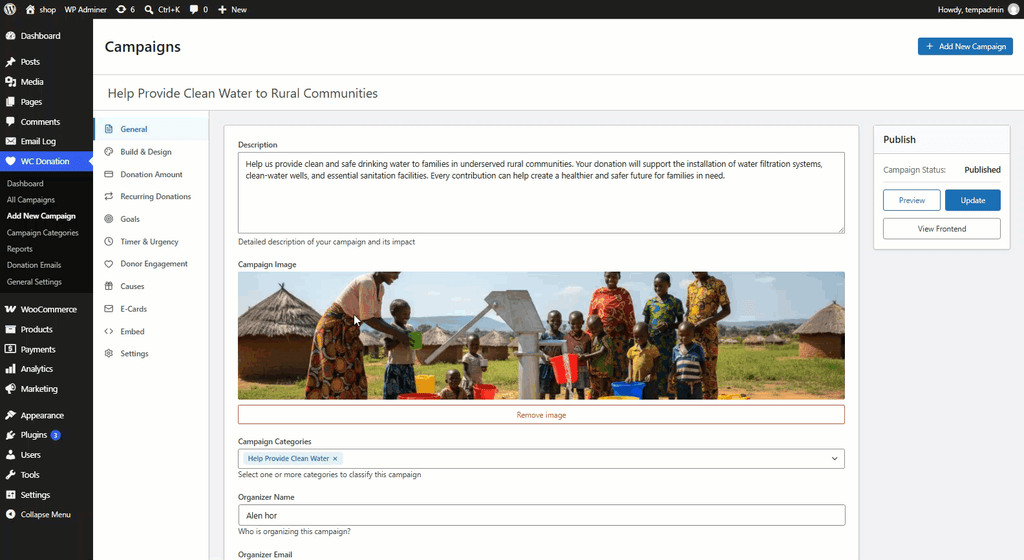
Go to WC Donation → Add New Campaign and enter a title. The title becomes the product name behind the campaign and the default page heading. Then open the General tab:
- Description: the story behind your cause.
- Campaign Image: PNG, JPG, or GIF, up to 2MB.
- Campaign Categories: optional, for organizing several campaigns.
- Organizer Name and Email: who runs the campaign.
Only the title is mandatory. The plugin pre-fills a starter layout with a title, description, amount levels, and donate button.
Step 3: Set Your Donation Amounts
Open the Donation Amount tab and pick an amount type.
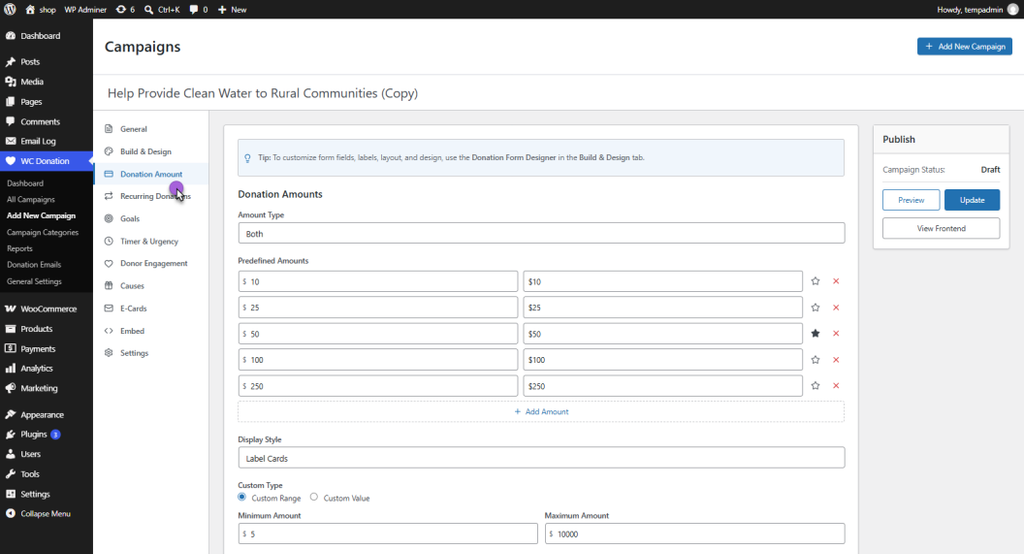
| Amount type | What donors see |
| Both (default) | Fixed tiers plus a custom amount |
| Predefined | Fixed tiers only |
| Custom | A free-entry amount only |
For predefined tiers, add an amount and a label per row, and star one as the default. Choose how tiers display: label cards, radio buttons, or a dropdown. You can also place the currency symbol before or after the amount.
Step 4: Design the Campaign Page and Donation Form
The Build & Design tab holds a drag-and-drop Campaign Page Builder. Pick a Single, Double, Double with Header, or Tabbed layout. Then drag in components such as the Goal Progress Bar, Donor Wall, Social Share, and Donation Form.
The Donation Form Designer works the same way for the form itself. You can add name, email, phone, address, and message fields. You can also add opt-ins for Anonymous, Gift Aid, Tribute, Processing Fee, and Terms.
The form can display on the same page or in a modal popup. Use the desktop and mobile toggle to check both layouts before publishing.
Step 5: Turn On Features That Fit Your Campaign
Each feature in this WooCommerce donation plugin has its own tab. Enable only what your campaign needs.
| Feature | What it does | Requirement |
| Goals | Tracks progress by amount raised, percentage, number of donations, or number of days | Enable on the Goals tab |
| Recurring Donations | Accepts gifts on an interval you set, or lets donors choose | WooCommerce Subscriptions |
| Timer & Urgency | Adds a countdown and an end message | None |
| Causes | Lets donors choose which cause their gift supports | None |
| Donor Engagement | Shows a donor wall and social share buttons | None |
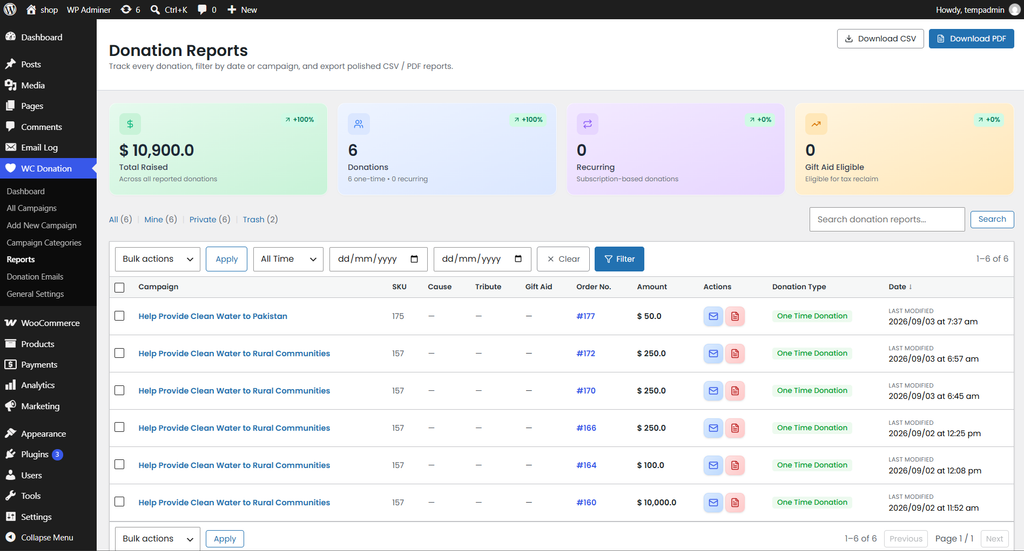
| E-Cards | Emails a thank-you card after the order is completed | Add the E-Card tag in Donation Emails |
Planning a seasonal push? Goals and the countdown timer work especially well for time-bound events. For a full walkthrough, see our guide on running a GivingTuesday donation campaign in WooCommerce.
Step 6: Publish and Embed the Campaign
Click Publish, then open the Embed tab. Save the campaign at least once first, because embedding needs a campaign ID. Then choose one option:
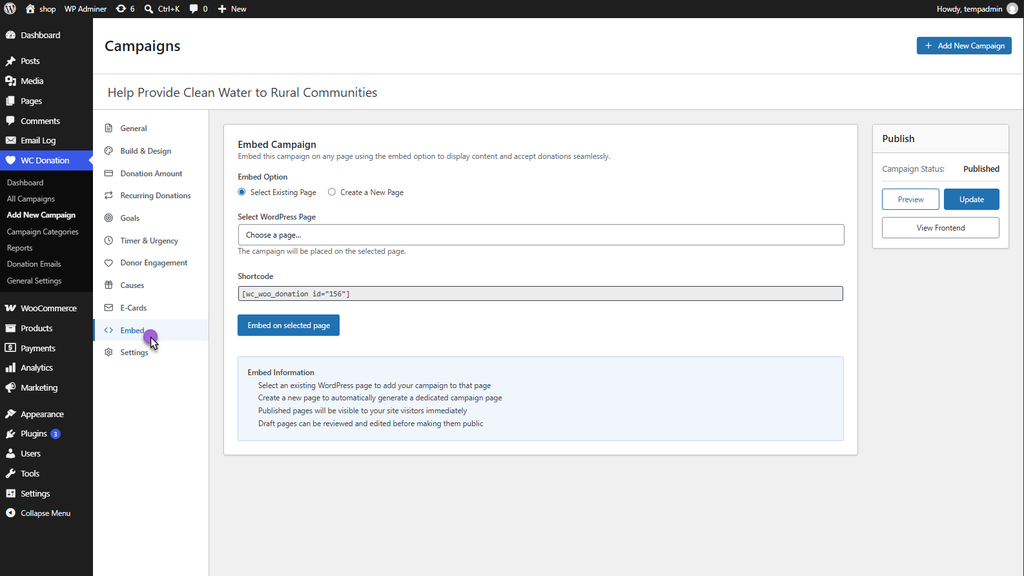
- Select Existing Page: add the campaign to a page you already have.
- Create a New Page: name the page and set it to Published, Draft, Private, or Pending.
The plugin inserts the shortcode for you. If you prefer to place it manually, it looks like [wc_woo_donation id=”ID”].
Step 7: Add a Donation at Checkout With Donation for WooCommerce
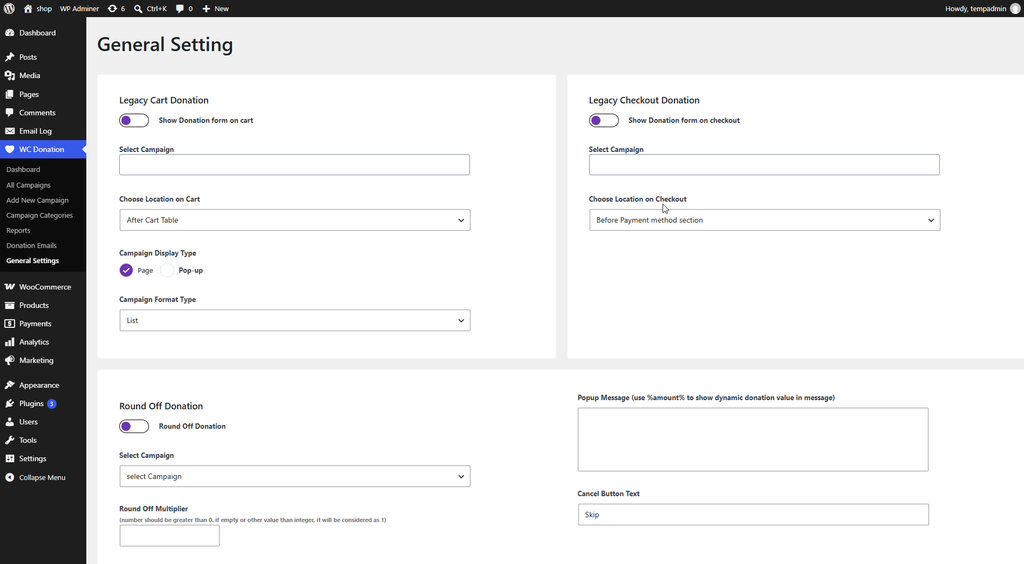
A campaign page is not the only place to accept donations in WooCommerce. Under WC Donation → General Settings, you can prompt shoppers during their normal purchase.
| Option | What it does | Good to know |
| Legacy Checkout Donation | Shows a campaign before or after the payment method section | Select which campaigns appear |
| Legacy Cart Donation | Shows a campaign on the cart page, inline or as a popup | Choose its position around the cart table |
| Round Off Donation | Rounds the cart total up and offers the difference as a donation | Campaign must have no goal enabled |
| Donation on Product | Sets a percentage of selected products’ price as a donation | Can display on cart, checkout, and product pages |
| Credit Card Processing Fees | Offers donors the option to cover fees, as a percentage or fixed amount | Choose which campaigns show it |
The WC Donation Checkout block adds four checkout styles: Single Page, Multi-Step Wizard, and popup versions of each. It works only when Legacy Checkout Donation is disabled. The Embed tab always generates a Single Page style shortcode, so use the block for the other styles.
Keep every checkout prompt optional. Shoppers who feel pressured may abandon the cart.
Step 8: Test Before You Go Live
One test order catches most setup mistakes. Run through this checklist:
- Open the live campaign page and select a predefined amount.
- Repeat with a custom amount, if enabled.
- Complete checkout using your payment gateway’s test mode.
- Confirm the order appears in WooCommerce → Orders.
- Mark the order Completed and check that the donation email arrives.
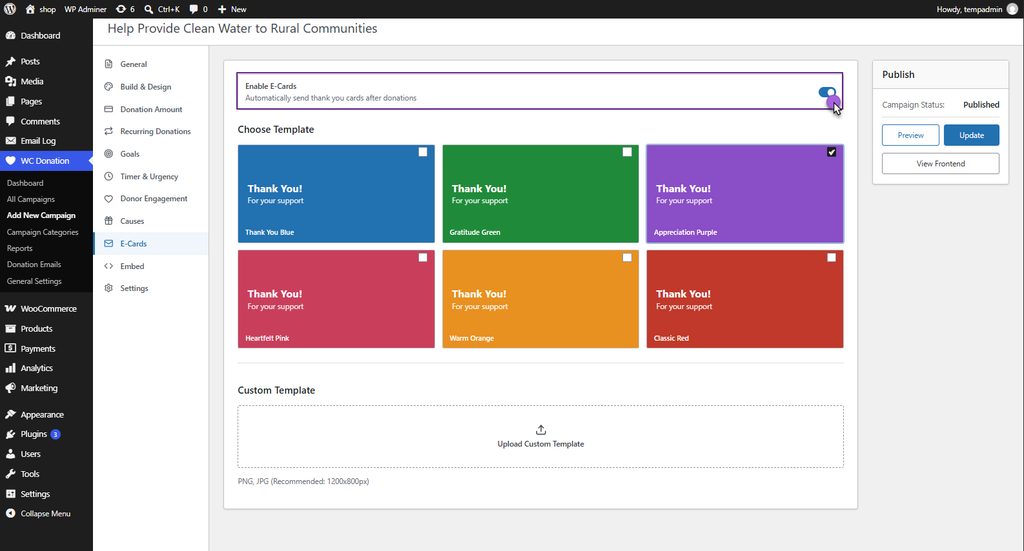
- Open WC Donation → Reports and confirm the donation row and updated totals.
Step 9: Set Up Thank-You Emails and Receipts
Go to WC Donation → Donation Emails and click Add New Donation Email. Add a title and subject, write the body, and select the campaigns it applies to. Choose the trigger, enable the template, and publish. The email sends when the order is marked Completed.
For receipts, enable the PDF Receipt toggle in General Settings. Then use the Email or PDF icon beside any donation in Reports.
Step 10: Track Your Fundraising Results
The Dashboard shows total campaigns, active campaigns, total donations, and total donors. Filter by 7 days, 30 days, 12 months, or a custom range. Charts show donations over time and your top five campaigns.
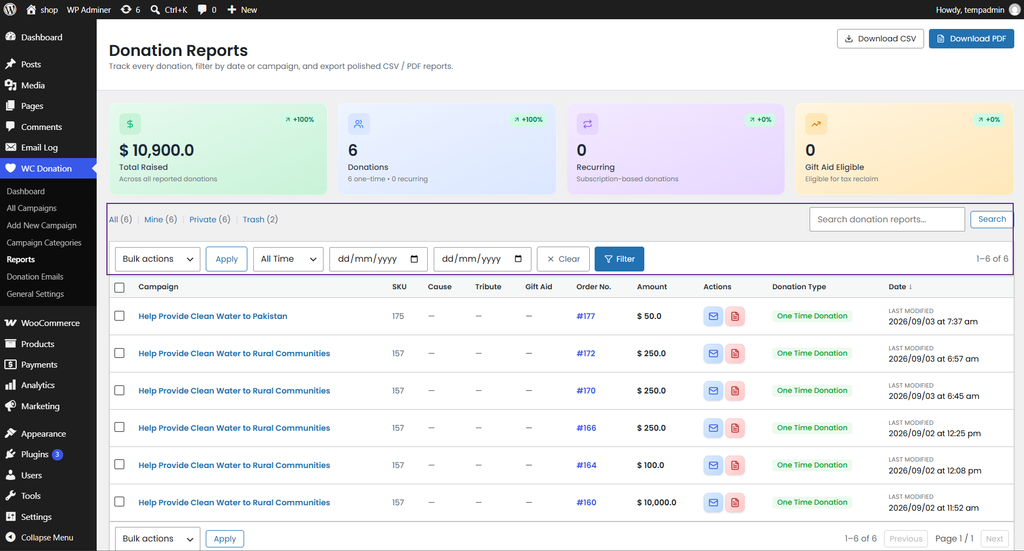
The Reports screen lists each donation with its campaign, cause, order number, amount, and type. Filter by date and export the results as CSV or PDF.
How Donation for WooCommerce Accepts Donations
Donation for WooCommerce backs every fundraising campaign with a hidden WooCommerce product. When someone donates, they buy that product through the normal cart and checkout.
That has three practical effects:
- Donations appear in your WooCommerce Orders.
- Donations use your existing payment gateways.
- You can refund donations like any other order.
What You Can Do With a WooCommerce Donation Plugin
Once the plugin is active, you can build each of these from the WC Donation menu:
- Separate campaigns, each with its own amounts and goal.
- Recurring gifts and cause selection.
- Donations at checkout, not only on a campaign page.
- Opt-ins such as Gift Aid, tributes, and processing fees.
- Reports you can filter and export as CSV or PDF.
Common Problems and Quick Fixes
| Problem | Fix |
| Raised amount or donor count looks wrong | Use Synchronize Campaign Data in General Settings |
| Recurring Donations tab is greyed out | Install and activate WooCommerce Subscriptions |
| A component is greyed out in the builder | Gift Aid, Tribute, Processing Fee, Terms, and Anonymous are single-use. Remove the existing one first |
| Campaign still shows the old design | It is likely on the legacy editor. Look for the notice offering the new frontend |
| Progress Bar or Donor Wall is empty | Enable Goals or Donor Engagement in the campaign editor |
| Round Off campaign is not listed | Pick a campaign with no goal that is not already used for cart or checkout donations |
Special Recommendation: If you need a donation app for Shopify, explore Donate Now by Objects. It helps Shopify stores collect donations right from their storefront.
Before You Start
- WooCommerce: required. The plugin cannot work without it.
- Minimums: WordPress 5.0 and PHP 5.6, as declared by the plugin.
- WooCommerce Subscriptions: needed only if you want recurring donations.
Already running campaigns from an older version? Campaigns created before version 4.0.0 keep the legacy frontend until you opt in. Review the legacy documentation and configure the Campaign Page Builder first. You can’t reverse the switch from the interface.
Conclusion: Is Donation for WooCommerce the Right Fit?
Donation for WooCommerce is a strong fit if you want to run real fundraising campaigns inside WooCommerce. It combines campaign pages, goals, recurring gifts, checkout prompts, reports, and donor emails in one plugin. Every gift runs through standard WooCommerce orders, so your gateways and refunds stay familiar.
It suits you if:
- You run one or more campaigns, each with its own amounts and goal.
- You want donations at checkout and on a dedicated campaign page.
- You need reports, receipts, or Gift Aid options.
Still weighing your options? Our comparison of the best WooCommerce donation plugins shows how the main choices stack up side by side.
One thing to plan for: recurring gifts require WooCommerce Subscriptions, which is a separate plugin. Campaigns created before version 4.0.0 also keep the legacy frontend until you opt in to the new one.
Want to extend your store further? Explore more WooCommerce plugins from WPExperts.