
How many quotes are sitting in your inbox right now, waiting on a status change nobody has time to make? v3.1 of the #1 WooCommerce quote plugin now fixes that with the Quote Workflows feature. It’s a built-in automation engine that changes quote status, sends counteroffers, fires reminders, and handles expiry.
This feature helps WooCommerce B2B owners manage quotes without clicking through each quote 1 by 1.
New WooCommerce Quote Workflows: The Feature Built to Run Your Quote Process
A workflow is a set of rules that watches for a trigger and fires an action. Go to WooCommerce > Request a Quote > Workflows to see every workflow in the store, its trigger, its action, and whether it’s Active, Inactive, or Draft.
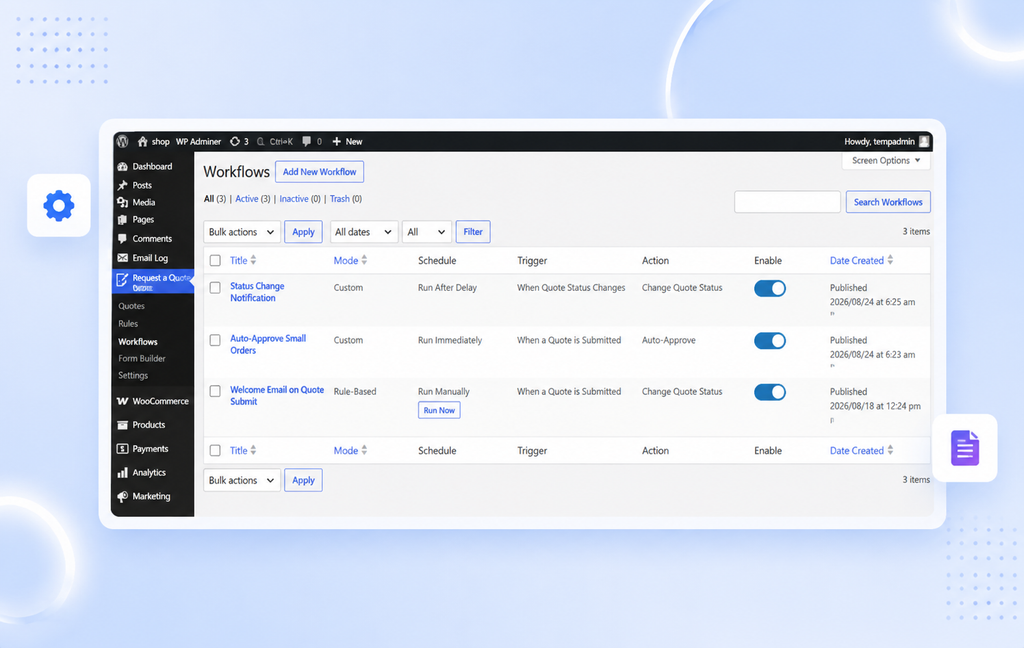
Each workflow runs in 1 of 2 modes. Rule-Based workflows apply to the users, roles, products, and statuses already defined in an existing quote rule. Custom workflows skip the rule and let admins build their own conditions from scratch, covering users, roles, products, categories, and quote statuses.
| Without Workflows | With Workflows in v3.1 |
| Every quote gets reviewed and updated manually | Quotes are approved, countered, or updated automatically based on rules you set |
| High-value quotes wait in line with everything else | Quotes above a set amount can be auto-approved the moment they’re submitted |
| Low offers need a manual counter reply | Counter offers go out automatically within a percentage range you define |
| Expiring quotes get missed without a manual check | Near-expiry and expired quotes trigger a reminder or status change on their own |
| Follow-ups depend on someone remembering to send them | Reminder emails go out on a delay or a recurring schedule |
| No record of what changed or when | Every execution is logged with a timestamp, email summary, and quotes processed |
| Had to use multiple WooCommerce extensions | Relaxing B2B workflow management by Nikla |
Set Triggers That Actually Match Your Process
Every workflow starts with a Trigger Event, the moment the system checks whether a workflow should run. 3 events are available:
- When a quote is submitted
- When a quote’s status changes
- When a quote is nearing or past its expiry date
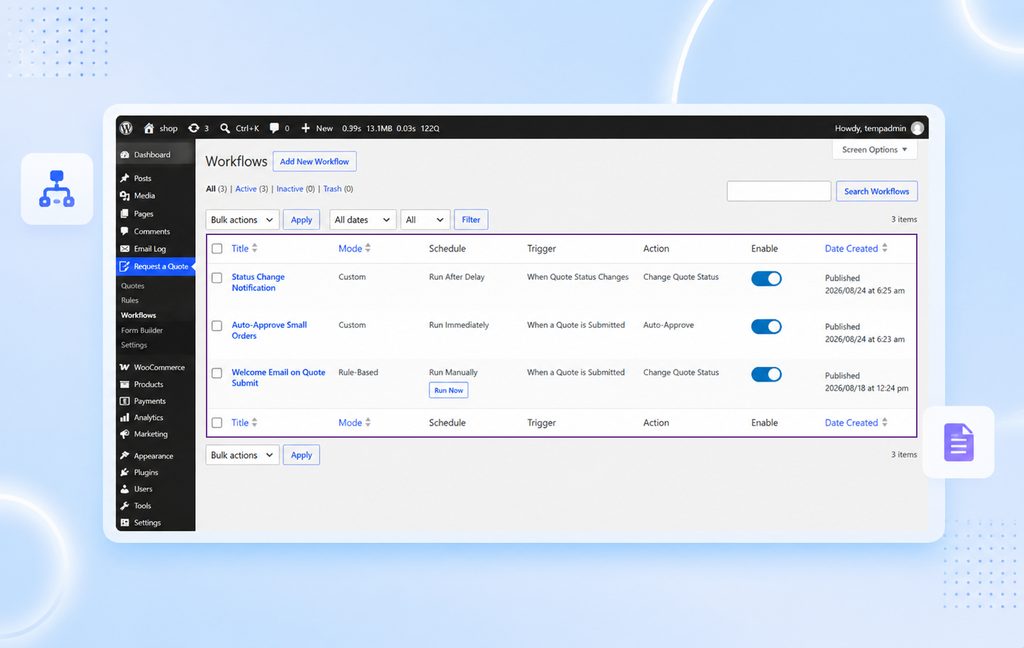
From there, the trigger itself defines the exact condition. Rule-Based workflows can trigger on a quote submitted by a rule’s user role, or a quote containing products from that rule. Custom workflows go further, comparing the quote amount against a set value, or checking whether the quoted price falls within a percentage of the standard price.
- Trigger a workflow the moment a B2B Customer submits a quote.
- Fire an action when a quote amount passes $5,000, using 6 comparison operators.
- Catch quotes nearing expiry a set number of days out, or quotes that have already expired.
Let the Quote Workflow Take the Action for You
Once a trigger fires, the configured action runs. Change Quote Status updates the quote to any core or custom status, with an email toggle to send or skip the notification. Auto-Approve does exactly what it says, moving the quote straight to Approved.
Counter Quote goes a step further. Admins set a percentage range, and the system sends the customer a counteroffer with Accept and Decline buttons built into the email. If the customer accepts, the quote is approved automatically, no manual follow-up needed. Send Reminder Email covers the rest, nudging customers who haven’t responded yet.
Control the Timing Down to the Minute
Workflows do not have to run the instant a trigger fires. Run Immediately executes the action right away, useful for cases like auto-approving any quote priced above 75 percent of standard. Run Manually holds the workflow until an admin clicks Run Now, either from inside the workflow or straight from the Workflow List Page.
Run After Delay adds a waiting period in minutes, hours, or days before the action fires. So a follow-up email can go out 1 hour after submission, or an auto-approval can kick in 2 days later if nothing changes. A Recurring Schedule takes this further, repeating the action every set number of hours, days, or weeks until a stopping condition is met.
Every Execution, Logged and Tracked
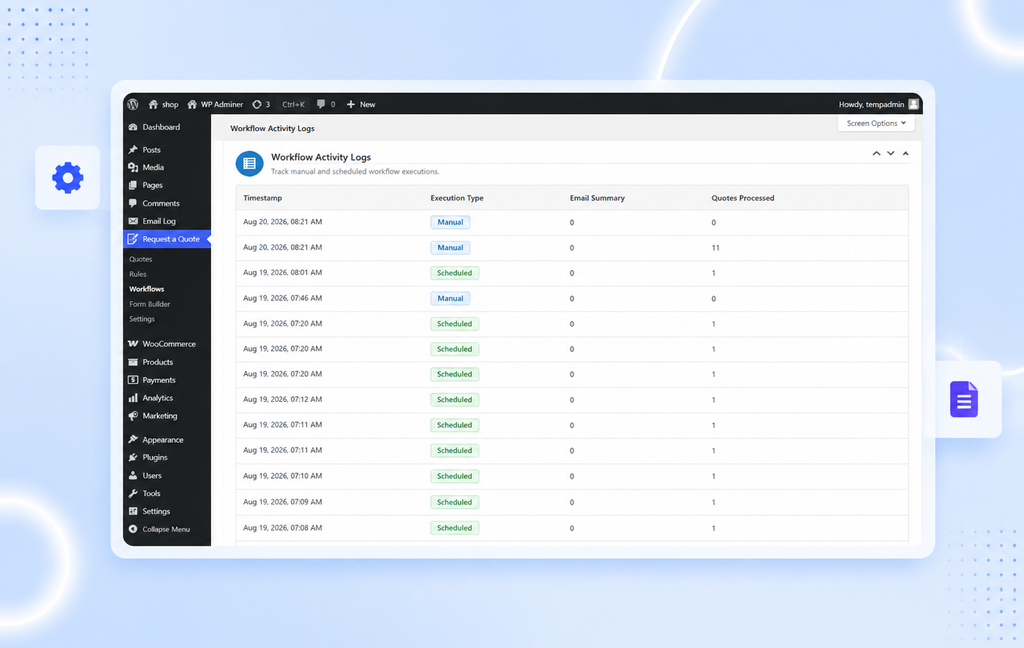
Automation only works if it is trustworthy. Activity Logs record every workflow execution with a timestamp, the execution type, an email summary, and the number of quotes processed. Nothing runs in the background without a visible trail.
Why Workflows in WooCommerce Change Quote Management
Quote plugins are usually built for 1 quote at a time. Workflows changes that by letting admins define the process once and let the system carry it out, whether that means auto-approving high-value quotes, countering low offers automatically, or catching every quote about to expire before it slips through.
For stores handling dozens or hundreds of quotes a month, this cuts the manual status updates and follow-up emails down to the exceptions that actually need a human decision.
Get Started With Quote Workflows in WooCommerce Today
Workflows ships inside B2B Request a Quote for WooCommerce v3.1 at no extra cost. Go to WooCommerce > Request a Quote > Workflows, click Add New Workflow, and set your first trigger and action.
Update to v3.1 today and let your quote process run itself.