Did you know AI is the leading technology priority (55%) for B2B eCommerce in 2026? Around 81% of B2B ecommerce practitioners are actively investing in AI and ecommerce.
Most wholesale store owners don’t lose time to big problems. They lose it to small ones, repeated all day long. Checking a discount rule. Approving a registration. Updating an email subject line. None of it is hard. All of it adds up.
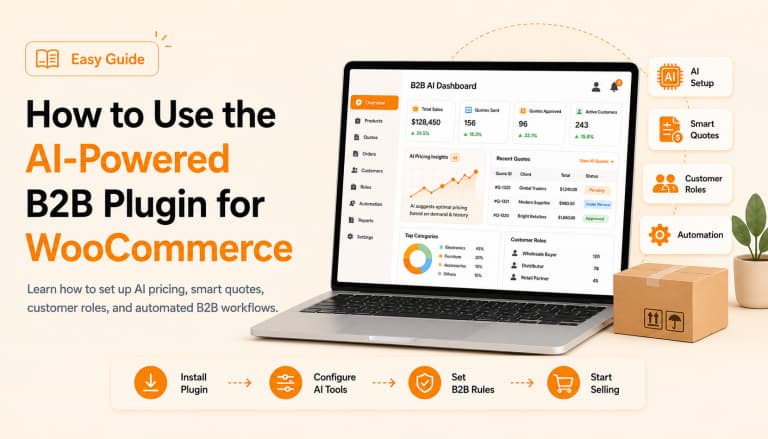
That’s the gap the AI Assistant inside B2B Wholesale for WooCommerce was built to close. It isn’t a chatbot glued onto the plugin as an afterthought. It reads your actual store data and, within the permissions you set, gets things done — not just tells you how. Here’s what that means for your B2B workflow.
In this guide, you’ll learn: what the AI Assistant does, why it matters specifically for B2B stores, how to set it up in 8 steps, real prompt examples you can copy, and the safety controls (permissions, rollback) that keep you in charge
What Is the AI Assistant in Wholesale for WooCommerce?
The AI Assistant is a built-in feature of the B2B Wholesale for WooCommerce plugin — one of the WooCommerce plugins built for wholesale operations — that lets B2B store admins manage wholesale operations — pricing, roles, registrations, quotes, and analytics — using plain English requests instead of manual navigation through plugin settings. It acts directly on your store’s live data, within permissions you configure, and every change it makes is logged and reversible.
In short, it’s a purpose-built B2B automation layer for WooCommerce.
It’s not a general-purpose chatbot adapted for wholesale use.
If you’re new to this, our guide on what a WooCommerce B2B plugin actually is covers the basics.
Why Your B2B Store Benefits from an AI Assistant
A B2B wholesale store carries more moving parts than a regular shop — roles, quotes, tiered pricing, and registration rules. An assistant that actually understands your B2B setup turns hours of clicking into a few typed questions.
1. Faster Performance Reviews
Ask it to analyze your wholesale sales, revenue trends, and buyer activity for any period, and it hands back a summary with recommendations attached. You’re not left staring at a spreadsheet trying to figure out what the numbers mean.
2. Quicker Pricing Checks
Ask what discount applies to the “Wholesale Customer” role, and you get the answer in seconds. No opening the pricing tab, no scrolling through rule after rule to find the one you need.
3. Simpler Role and Quote Management
Creating a buyer role usually means several clicks over multiple screens. Here, you describe the role, its name, and its purpose in one message, and the assistant sets it up.
4. Fewer Manual Configuration Mistakes
Because it works on your live settings rather than a separate copy, the changes it makes match what’s actually running on your store. Fewer mismatched pricing rules. Fewer outdated templates nobody noticed.
5. Faster Registration and Account Handling
Once your buyer list grows, reviewing account applications one by one gets old fast. The AI assistant can view, approve, or reject pending requests based on rules you’ve already set, turning a repetitive task into a single message.
6. Full Control Over Automation Level
You decide how much the AI actually does. Suggest Only, Apply After Approval, or Auto Apply — each mode gives you a different level of control, depending on how much you trust the setup. That control is what makes the setup manageable in daily use.
Manual vs. AI-Assisted Wholesale Management
| Task | Manual Approach | With the AI Assistant |
| Checking a discount rule | Open pricing settings, scroll through rules | Ask directly, get an instant answer |
| Creating a buyer role | Navigate multiple screens, configure each field | Describe the role in one message |
| Reviewing store performance | Pull and interpret reports manually | Get a summarized analysis with recommendations |
| Approving registrations | Review each application individually | Approve/reject based on your pre-set rules |
| Updating email templates | Locate and edit template settings | Request the change directly |
| Undoing a mistake | Manually reverse each setting | One-click rollback from Change History |
How to Set Up and Use the AI Assistant, Step by Step
The setup takes a few minutes. What follows is the complete process, from connecting a provider to asking your first real question. Start with the connection, then move through the settings in order.
Step 1: Connect Your AI Provider
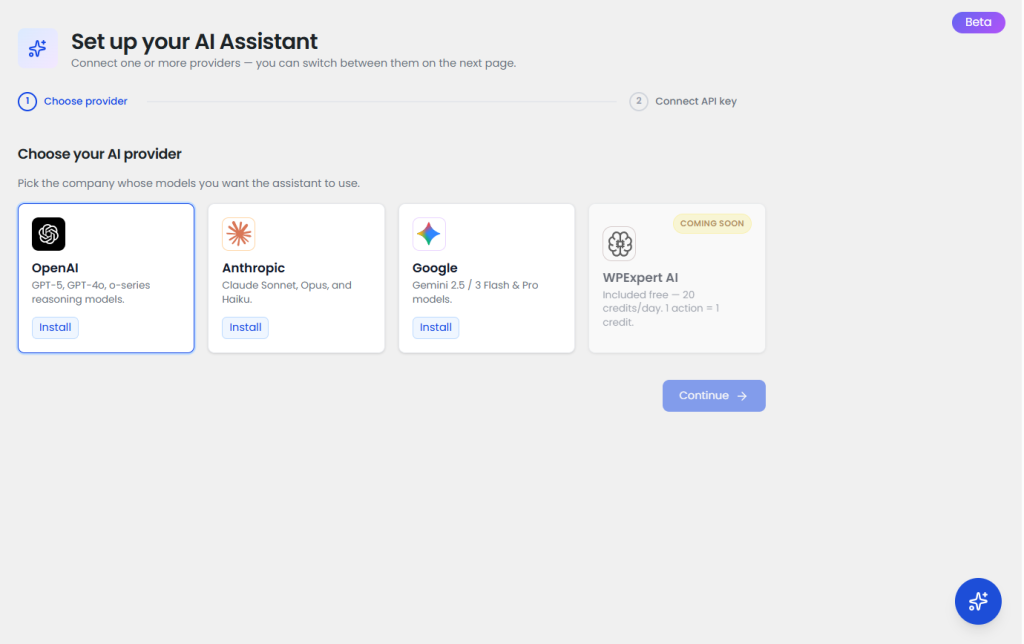
Go to WordPress Admin Dashboard → Wholesale → AI Assistant. Select your preferred AI provider, then click Install. The matching provider plugin installs itself in the background — no extra downloads needed.
Step 2: Add Your API Key
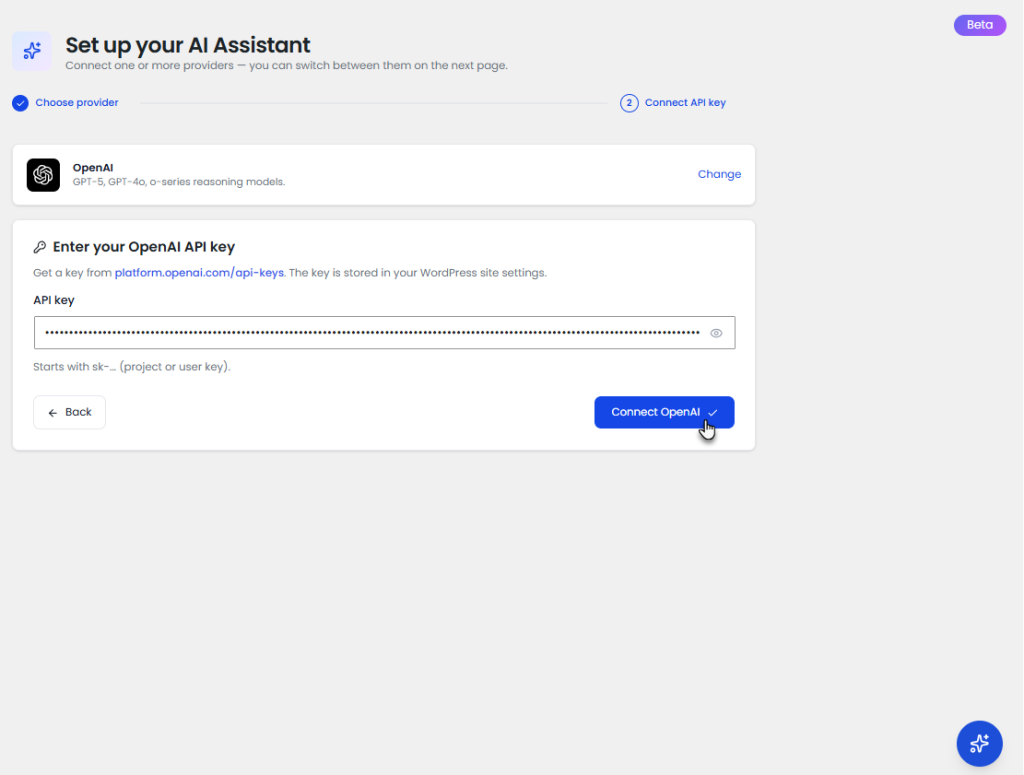
Once the provider plugin is active:
- Enter your AI provider’s API key.
- Click Connect
- Wait to get confirmation that the connection succeeded.
Step 3: Enable the Assistant and Choose Visibility
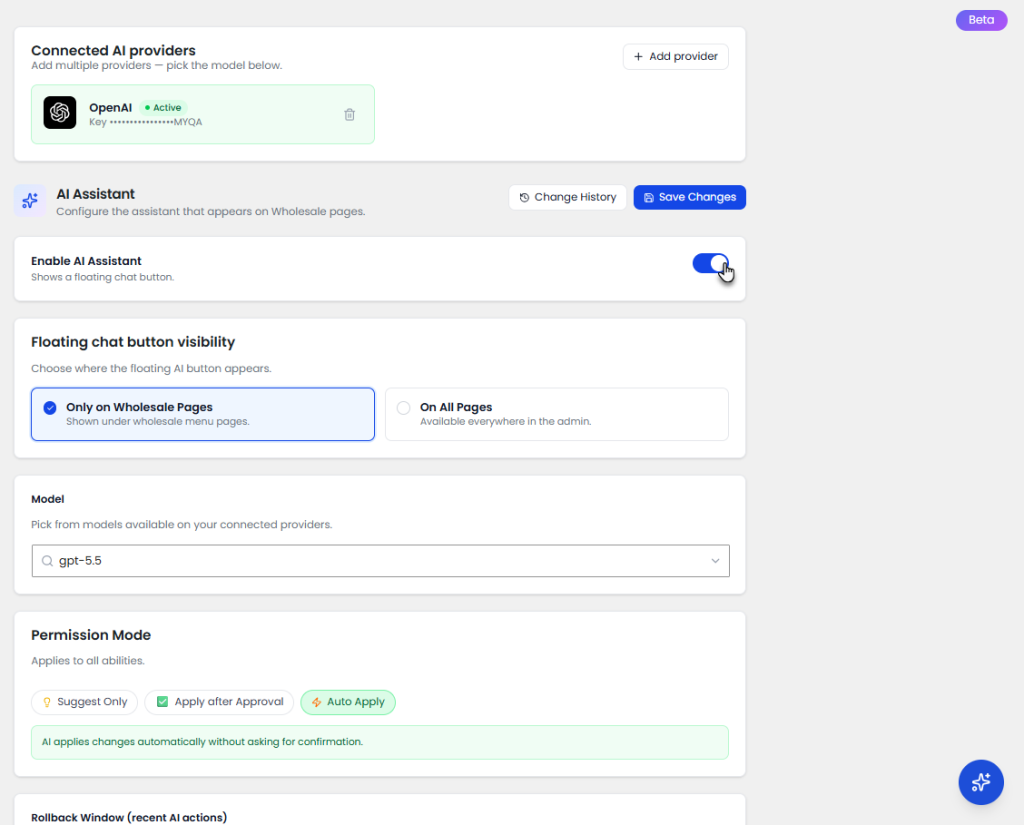
Turn it on, then decide whether the floating chat button appears — only on Wholesale pages, or across the whole WordPress dashboard. Most store owners keep it to Wholesale pages, so it stays focused on wholesale work.
Step 4: Pick Your AI Model
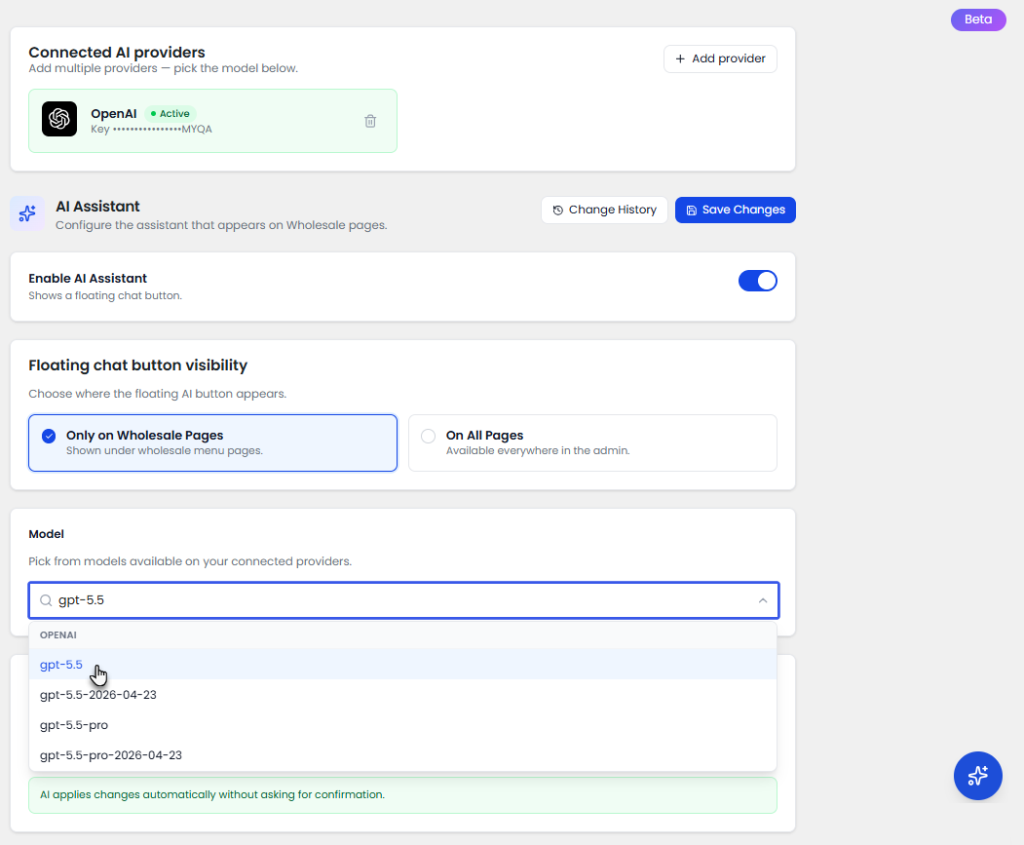
If your provider offers multiple models, choose the one best suited to the task. Lighter models suit quick daily questions. Stronger ones make more sense for deeper analytics and reporting work.
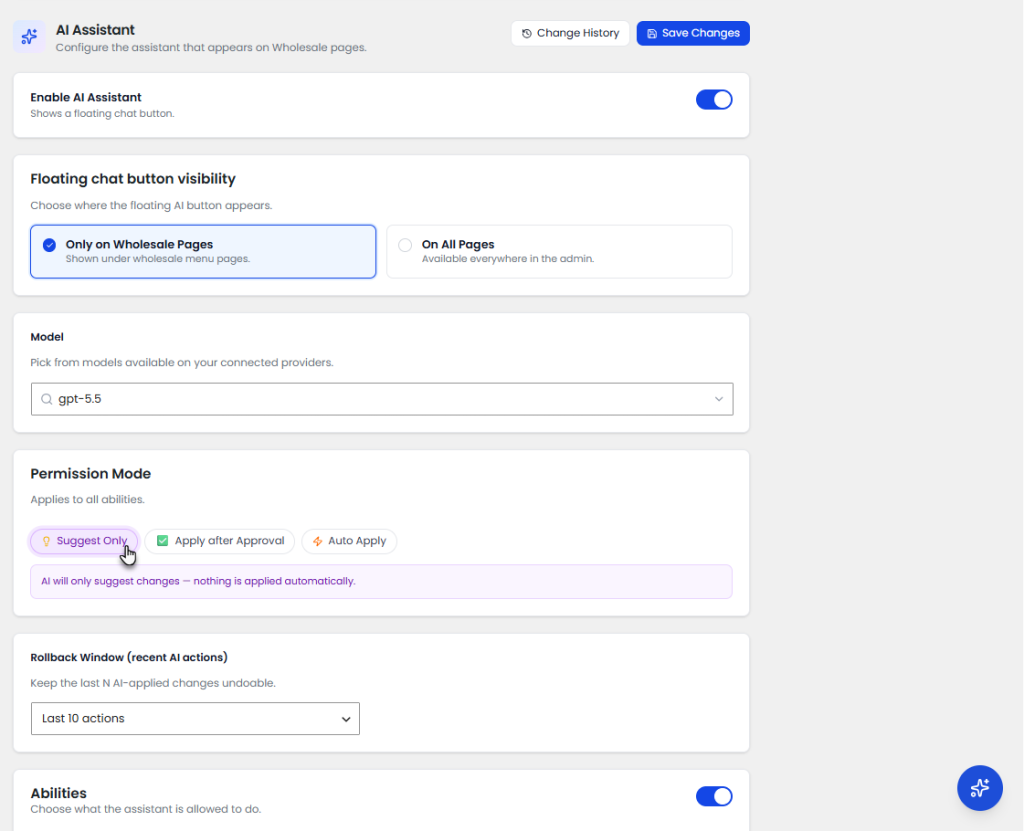
Step 5: Set Your Permission Mode
This decides how hands-off the assistant remains:
- Suggest Only — gives recommendations and steps, never touches your store.
- Apply After Approval — prepares the change and waits for your confirmation.
- Auto Apply — performs permitted actions immediately; no approval needed.
Step 6: Turn On Only the Abilities You Need
Under Abilities, enable exactly what the assistant shall be allowed to touch: Dashboard & Analytics, Wholesale Settings, Global Discounts & Pricing, Cart Discounts, B2B User Roles, Email Notifications, Registration Settings, WooCommerce Products, Categories, Account Requests, B2B User Profiles, Quote Settings, Quote Rules, and Quote Updates. Anything left off is off-limits, no exceptions.
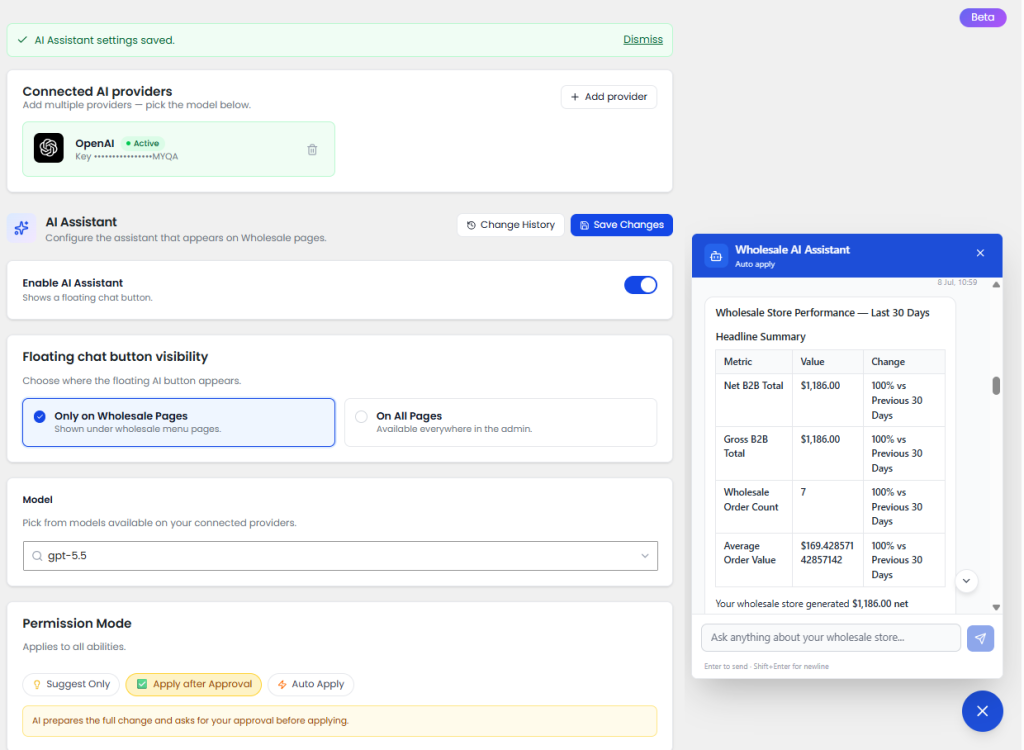
Step 7: Set a Rollback Window
Decide how many recent actions you can undo — say, the last ten. It’s a safety net for anyone running Apply After Approval or Auto Apply mode.
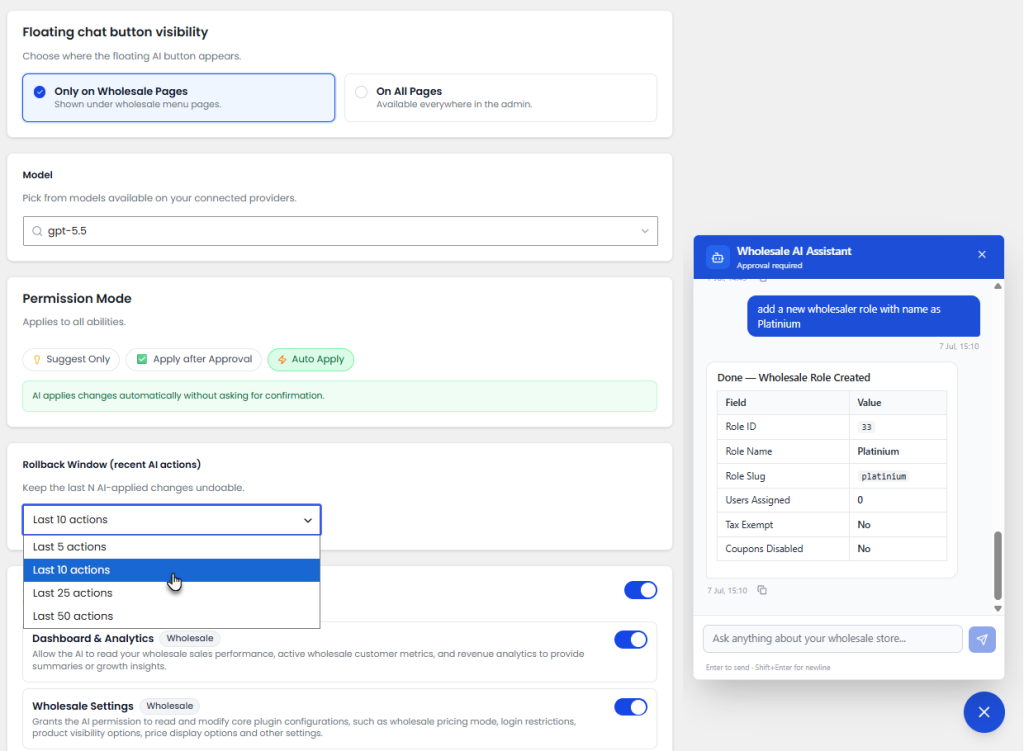
Step 8: Start Asking Real Questions
Write it the way you’d ask a coworker:
- “Update the subject line of the New Registration email.”
- “Change the PDF quote template to Dark Blue.”
- “What discount is assigned to the Wholesale Customer role?”
- “Create a new wholesale role called Bulk Buyer with a 15% discount.”
- “Analyze my wholesale sales for the last 30 days and suggest improvements.”
No commands to memorize, no special syntax.
What Makes This Different from a Basic Chatbot
Plenty of plugins slap an “AI” label on a simple FAQ widget and call it a feature. This B2B AI Assistant, built into Wholesale for WooCommerce Pro, works differently because it acts on your store’s real settings and data, not a script of pre-written replies.
For a broader look at this shift, see our post on AI-powered WooCommerce B2B plugins.
Here’s what sets it apart:
- It acts on live data, not scripted answers. It reads and updates your actual B2B store settings in real time, instead of pulling from a fixed set of canned responses.
- Every ability is opt-in. Leave “Manage WooCommerce Products” disabled, and the AI can’t touch a single product listing, no matter how it’s asked.
- You stay in control at every level of automation. This holds true even in Auto Apply mode — nothing runs outside the abilities you’ve explicitly enabled.
- Every action is logged. Changes made under Apply After Approval or Auto Apply land in the Change History, so nothing happens silently.
- Changes are reversible. Anything within your Rollback Window can be undone with one click, and you can filter the history by date to review last week’s changes in seconds, instead of filing a support ticket.
- Permissions are granular, not all-or-nothing. Abilities sit in separate categories rather than one blanket toggle, so you hand over exactly as much responsibility as you’re comfortable with — nothing more.
This level of control matters most for B2B and wholesale operations, where a single pricing rule error or a misconfigured quote setting can cost real revenue. A reviewable history means automation doesn’t come at the expense of accuracy — a critical distinction for any B2B store handling tiered pricing and bulk orders at scale. Our guide on quotes in B2B Wholesale for WooCommerce goes deeper into how that quote layer works.
How the AI Assistant Works Alongside the Product Table
The AI Assistant handles the backend — pricing, roles, registrations, quotes, analytics. On the customer-facing side, the Product Table gives B2B buyers a faster way to browse products, filter inventory, compare items, and place bulk orders from a single page. Together, the two features cover both ends of the same workflow: faster B2B store management for you, and a faster ordering experience for your buyers — part of the broader set of WooCommerce extensions built to run alongside Wholesale for WooCommerce.
Best Practices for Getting the Most from the AI Assistant
- Start with Suggest Only mode until you’re familiar with how the assistant responds.
- Switch to Apply After Approval for pricing or customer-facing changes.
- Enable only the abilities your store actually needs — disable the rest.
- Check Change History periodically, especially after enabling Auto Apply for any ability.
- Be specific in your prompts — naming the exact role, template, or rule gets a more accurate result than a vague request.
Get Started with the AI Assistant Today
Running a WooCommerce B2B store shouldn’t mean repeating the same small tasks every single day. The AI Assistant in Wholesale for WooCommerce gives your B2B operation a faster path through pricing, roles, quotes, registrations, and reporting, all while leaving you in charge of exactly what it’s allowed to do. It’s built by the WooCommerce experts at the WPExperts store and designed specifically for how wholesale businesses actually operate.
If you’re already using Wholesale for WooCommerce, update now to bring the AI Assistant straight into your dashboard, alongside the Product Table for your buyers. If you haven’t tried the plugin yet, start now and see how much of your week it can give back.