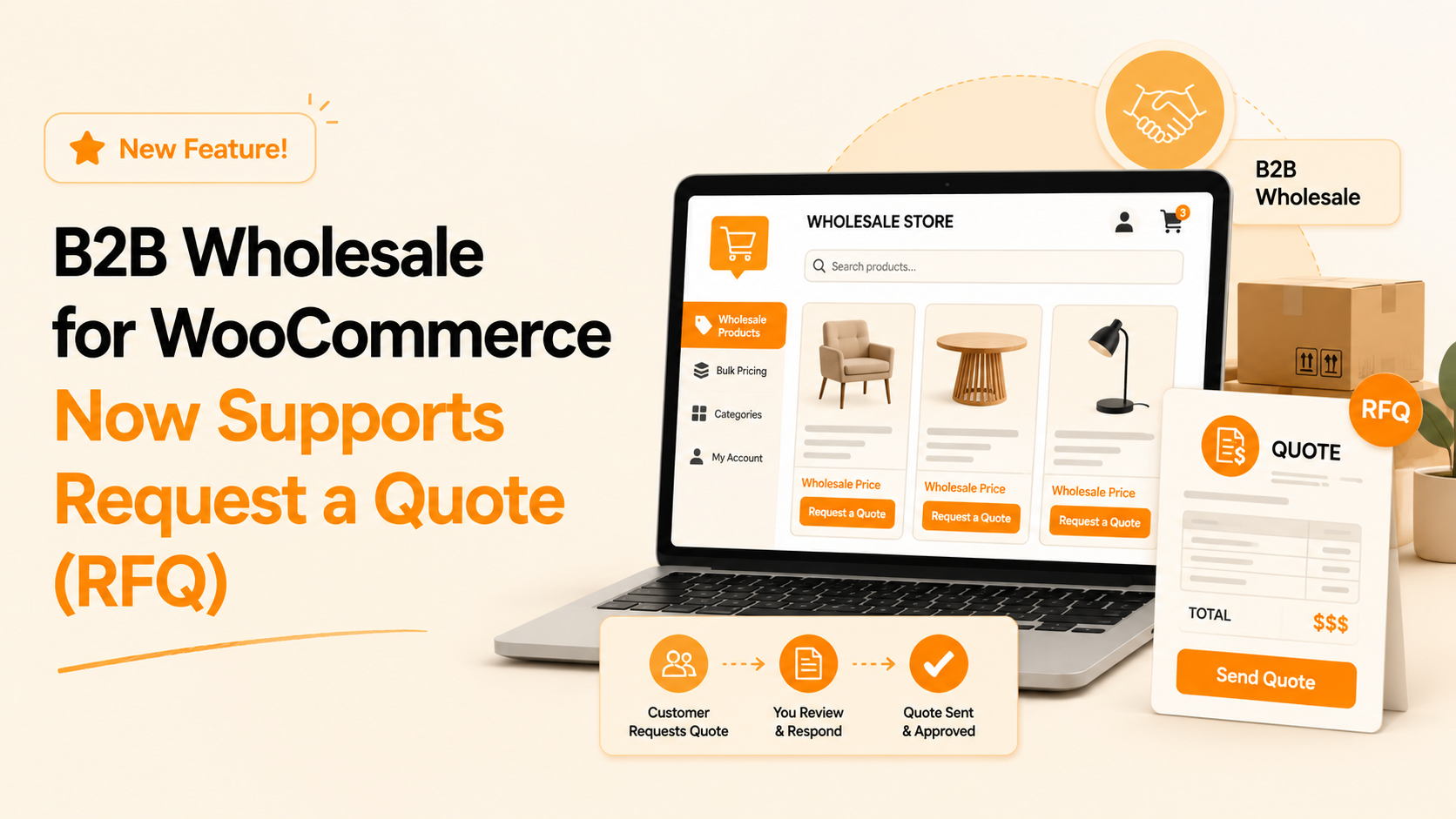
When a B2B buyer emails you asking for a price on 200 units. You send a quote. They reply: “Can you bump it to 350 and add these two SKUs?” You redo the numbers. Then their manager wants it in writing. Then accounting asks whether shipping is included. Three days later, nobody is sure which version is the “final” one, and the order still hasn’t moved.
If you sell B2B, you’ve lived this. Quoting over email starts simple and slowly turns into a mess of threads, spreadsheets, and “can you resend that?”
That’s a major gap the B2B Wholesale for WooCommerce just closed for WooCommerce B2B stores with smarter Quote Request functionality.
Request a Quote is Now Native: No Extra Plugin Required
B2B Request a Quote for WooCommerce is now built directly into the best WooCommerce B2B Wholesale plugin. No bolt-on extension, no separate integration to wrangle. With the v3.1 release, your B2B buyers can negotiate pricing, submit quote requests, and convert them into orders. All inside the same B2B plugin you already use for wholesale pricing, user roles, and bulk ordering.
One complete B2B plugin. One workflow. Here’s what it unlocks.
Why WooCommerce B2B Stores Need a Quote Workflow
Retail is clean: show a price, take the payment, done. B2B rarely works that way.
Wholesale or B2B buyers order in volume, and volume usually means negotiation. Pricing shifts with quantity, customer tier, and order mix. On top of that, the person browsing your store often isn’t the one who signs off; they need a quote to forward to a manager, a purchasing team, or finance. And big orders come with extra asks: custom quantities, specific shipping, and payment terms.
A request-for-quote flow gives all of that a home.
Here’s how a normal retail checkout compares with a B2B quote workflow:
| Retail WooCommerce Flow | B2B WooCommerce Flow With Quote Workflow |
| Customer sees a fixed price and checks out instantly. | Customer requests a custom price based on quantity, role, or order value. |
| One buyer usually makes the purchase decision. | The quote may need approval from managers, purchasing teams, or finance. |
| Orders are usually small and straightforward. | Orders are often bulk, mixed, repeat, or high-value. |
| Shipping and payment terms are usually standard. | Customers may need custom shipping, tax, delivery, or payment terms. |
| Price changes are rare after checkout starts. | Pricing can change during negotiation before the order is confirmed. |
| Communication happens mostly after the order is placed. | Communication happens before the order so both sides agree first. |
| The cart leads directly to payment. | The quote basket leads to review, negotiation, approval, and then order conversion. |
| Store admin manages completed orders. | Store admin manages quote statuses like New, Quoted, Accepted, Rejected, Expired, and Converted to Order. |
Instead of wholesale pricing living in scattered email threads, the request, the back-and-forth, and the final number sit in one place. And that is exactly what the new Request a Quote functionality in B2B Wholesale for WooCommerce does. It gives wholesale buyers a smoother way to request pricing and gives store admins a cleaner way to manage every quote from request to order.
Here is how it works:
1. Let Customers Build a Quote While They Shop
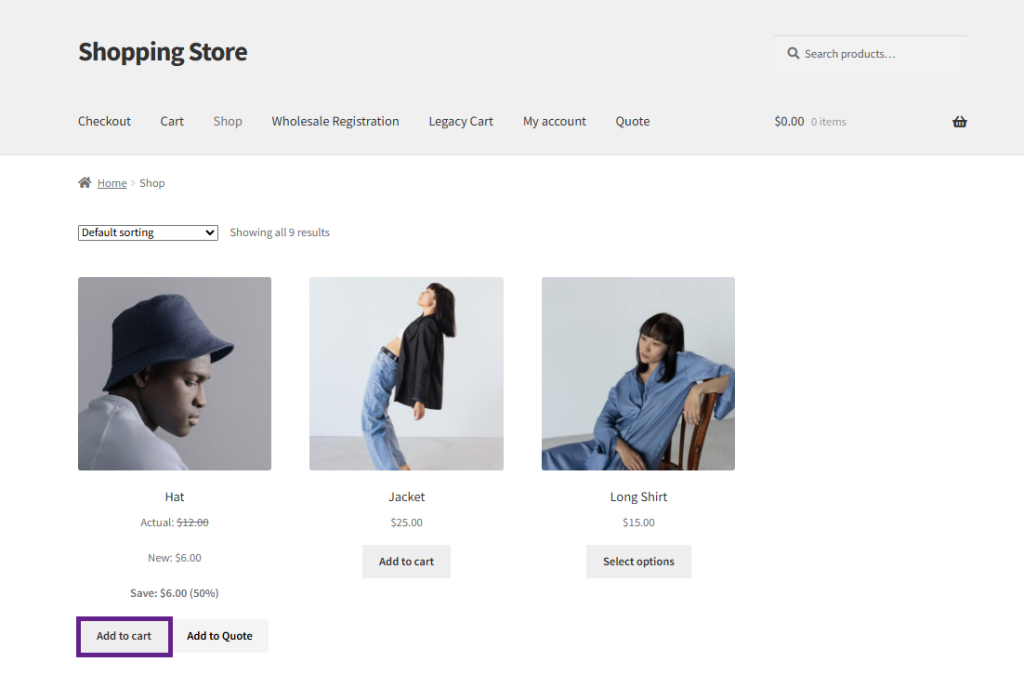
Your buyers no longer have to paste a messy list into an email. With quote rules enabled, an Add to Quote button appears right on your shop and single product pages, alongside Add to Cart, or instead of it. Buyers pick the exact items and quantities they want and send a clean request.

You stay in control of who sees it. Target the button by user role, specific users, products, categories, or tags, and exclude anything that shouldn’t be quotable. When multiple conditions overlap, rule priority keeps the behavior predictable.
2. Let Customers Offer Their Own Price
This is the heart of RFQ. Turn on Offered Price, and buyers can view their own price per product, right on the quote page, next to your standard pricing. Want to protect margins? Automatically increase or decrease the offered price by a fixed amount or percentage. Show tax, display the standard price for comparison, and let buyers tweak quantities before they hit Send Quote.
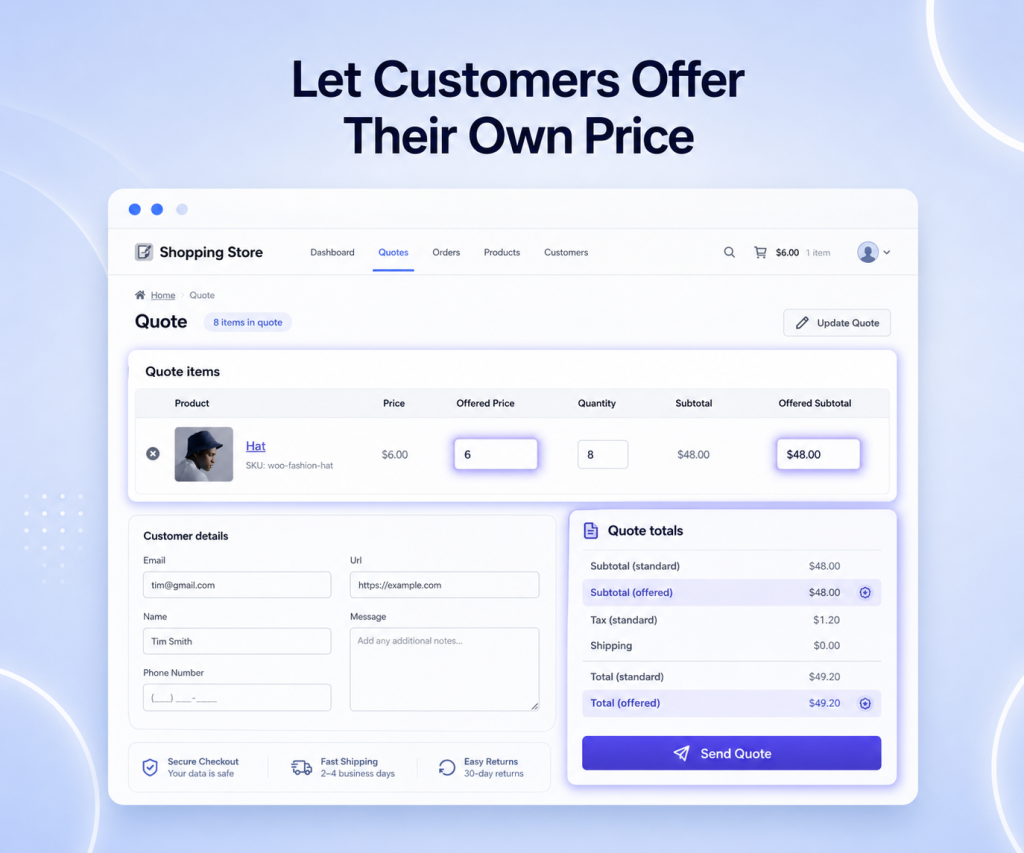
It’s pricing that flexes to how wholesale deals actually close.
3. Manage Every Quote from One Dashboard
Open Wholesale > Quote > Quote List, and every submitted quote is right there with title, customer, status, total, and date. You can sort and filter submitted quotes by user role and status. Click into any quote to review it, update the status (Draft, New, Quoted, Accepted, Rejected, Expired, Converted to Order), or even build a quote manually for a customer.
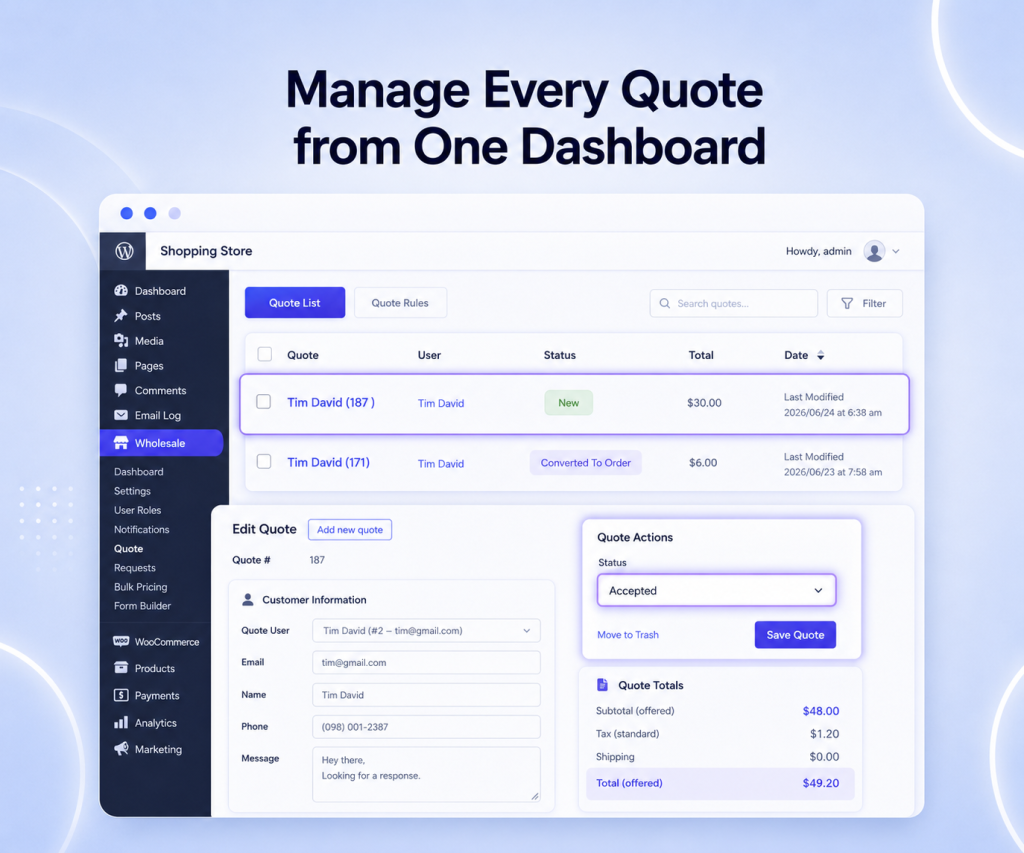
Need to move fast? Bulk-update statuses across dozens of quotes at once, and export the whole list to CSV for your records. No more hunting for “the one from last Tuesday.”
4. Send PDF Quotes and Automated Emails to Your B2B Clients
Every stage of the quote lifecycle can trigger its own fully customizable email sent to both you and your customer. You can attach a polished, fully tailored Quote PDF to your email or to your quotes page. Let customers download it from their account and drop an Accept & Checkout link directly in the document so buyers can approve and pay without a single follow-up.
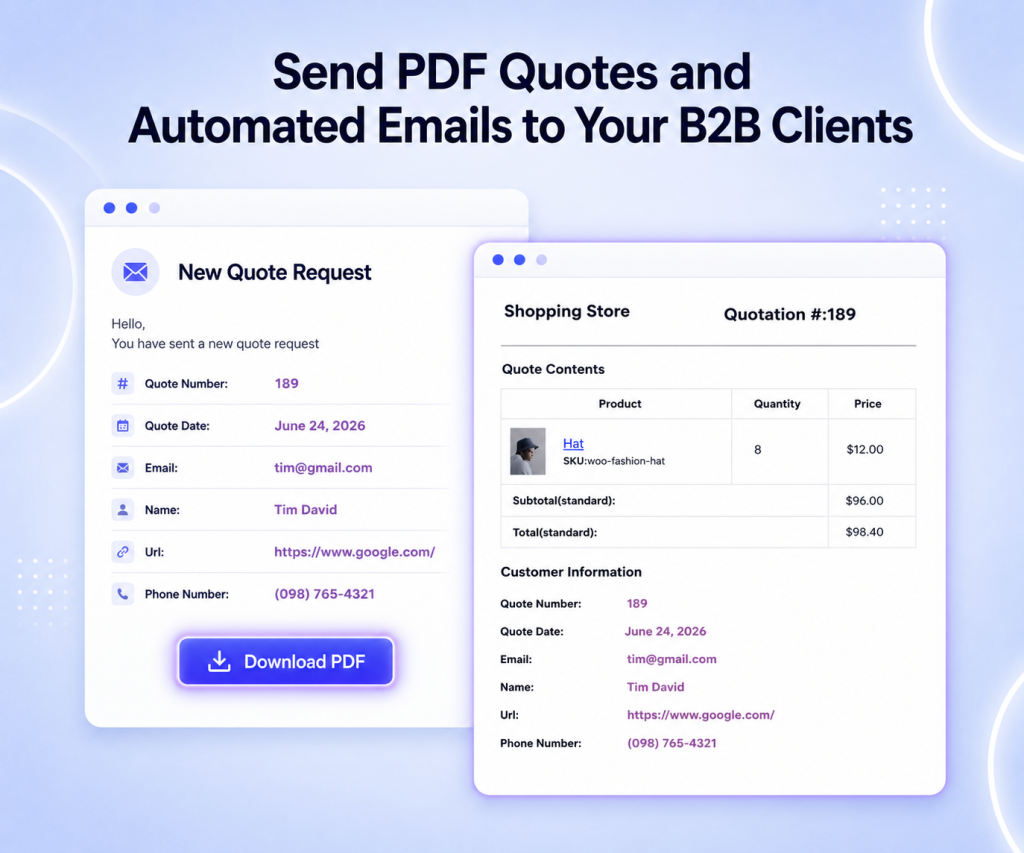
Pick the default template or one of three custom designs, then edit it to match your brand.
5. Build the Exact Quote Form You Need
The drag-and-drop Quote Form Builder lets you collect whatever matters to your business: company name, PO number, delivery date, file uploads, and more. Choose from text, email, phone, number, dropdown, checkbox, date/time, and file fields, mark which are required, and add validation.
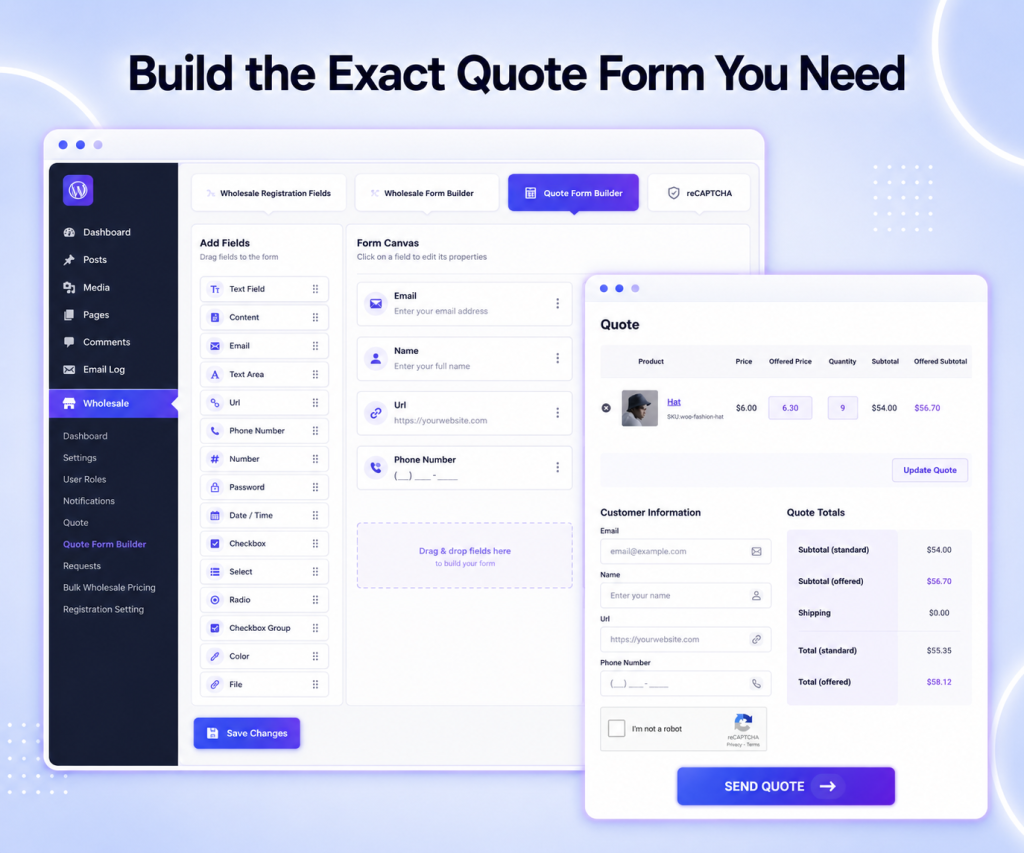
Worried about junk submissions? Built-in Google reCAPTCHA keeps bots out of your quote pipeline. Every request that lands is a real one worth your time.
6. Turn Approved Quotes into Orders, Instantly
When everyone agrees, conversion is one click. Show a Convert to Order, Convert to Cart, or Convert to Checkout button on accepted or quoted requests. When clicked, the approved items, quantities, and prices flow directly into WooCommerce. You can add custom tax and shipping before converting, and let buyers re-quote from a previously accepted request.
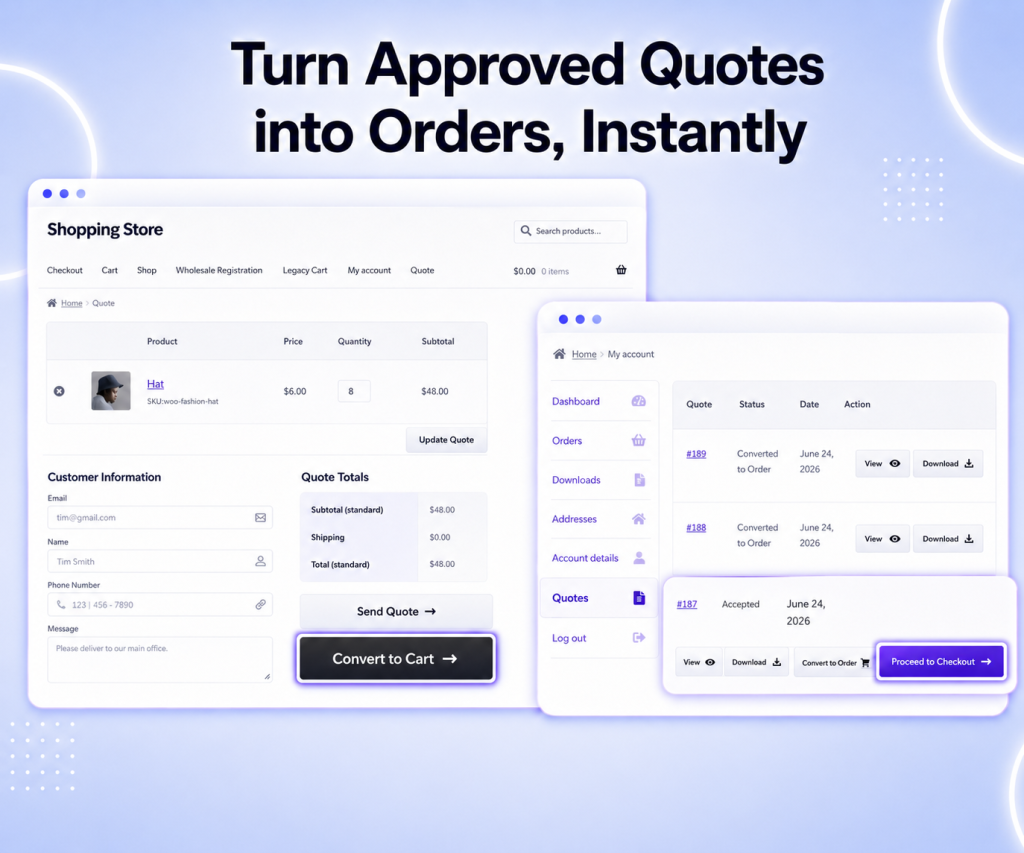
The numbers everyone signed off on become the order: no rebuilding, no re-keying, no costly copy-paste mistakes.
How to Set Up Request a Quote Functionality in B2B Wholesale for WooCommerce
Getting started takes just a few minutes. Here’s the full setup, step by step.
Step 1: Enable the Quote Feature
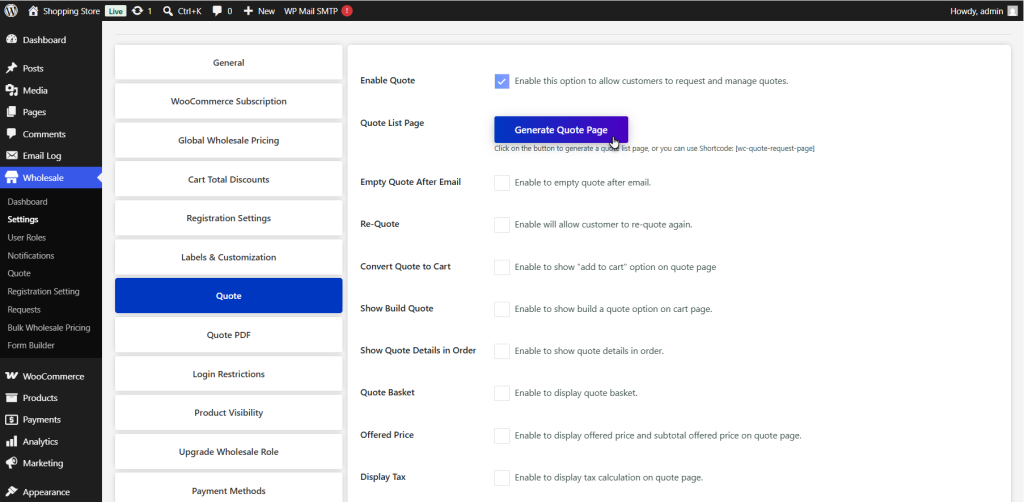
Go to Wholesale > Settings in your WordPress admin dashboard and open the Quote tab in the left-side menu. Check the Enable Quote box to switch on the quote system and its related settings.
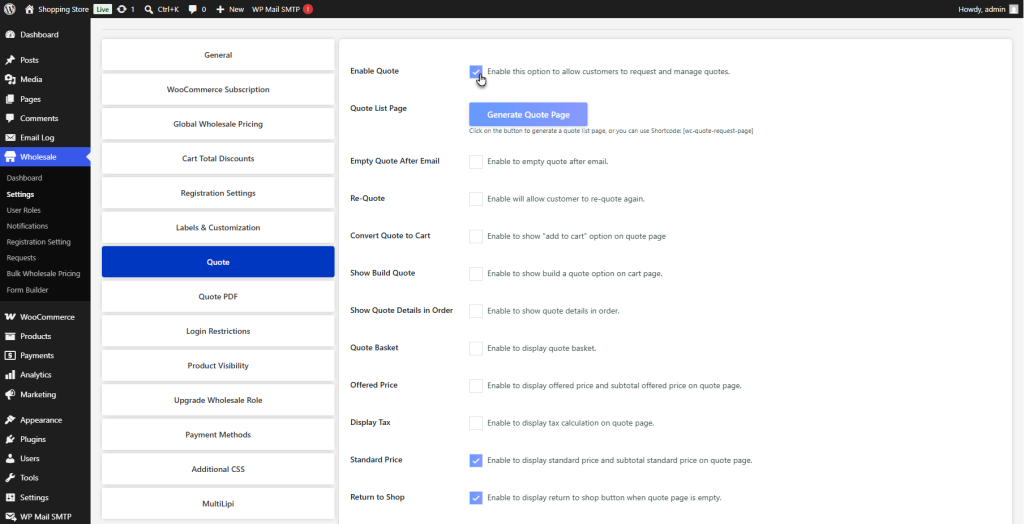
A new Quote menu now appears under Wholesale.
Step 2: Create Your First Quote Rule
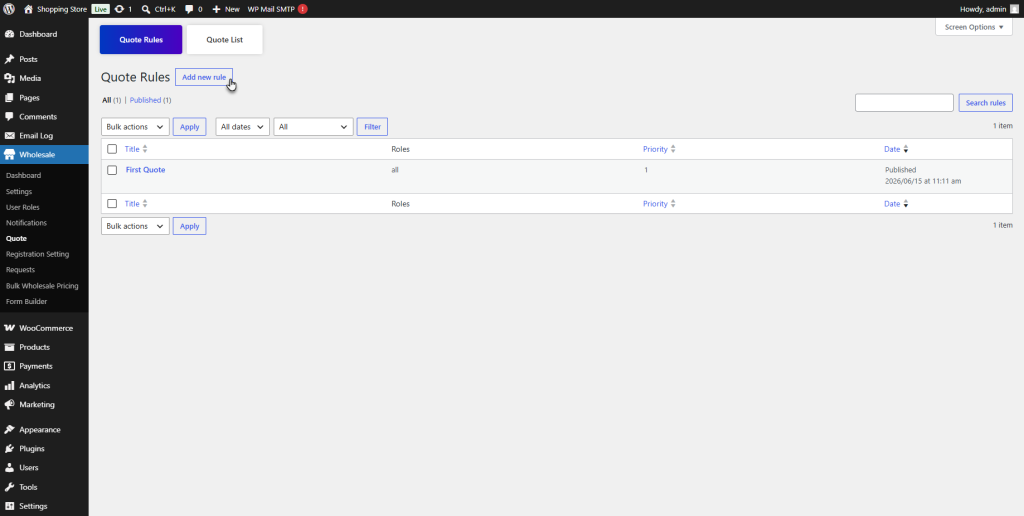
- Head to Wholesale > Quote > Quote Rules and click Add New Rule. On the Add/Edit Quote Rule screen.
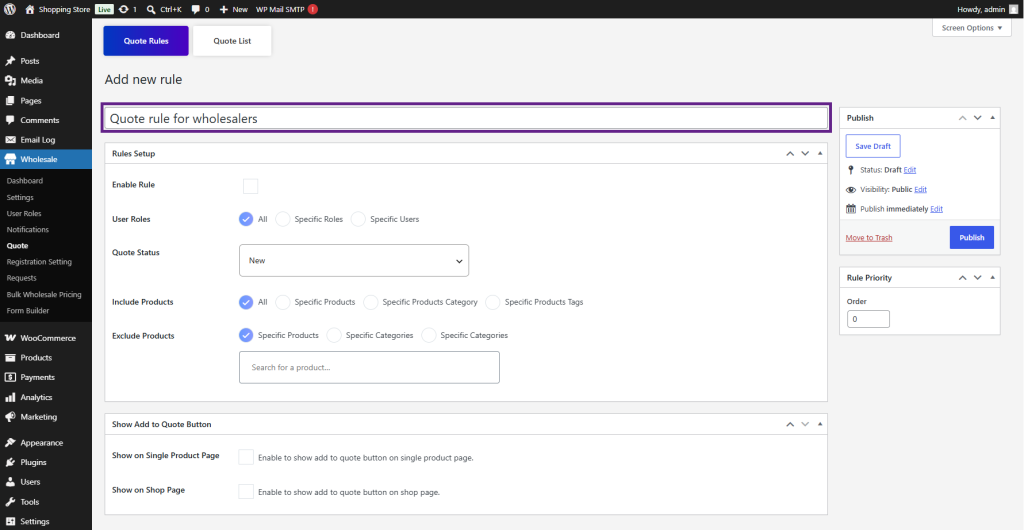
- Enter a name in the Rule Title field.
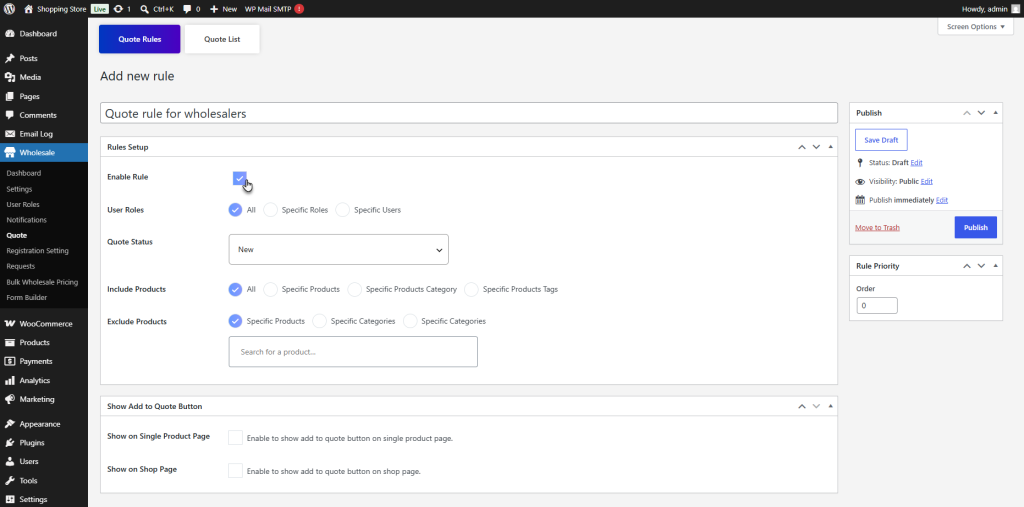
- In the Rule Setup box, check Enable Rule to activate it.
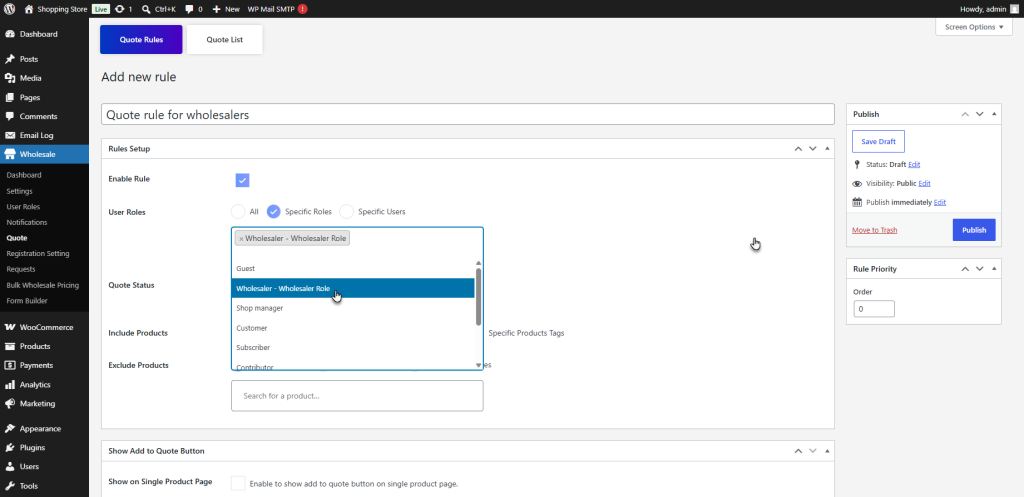
- Set User Role to choose who the rule applies to: All Users, Specific Roles, or Specific Users.
- Pick the Quote Status to assign to matching submissions.
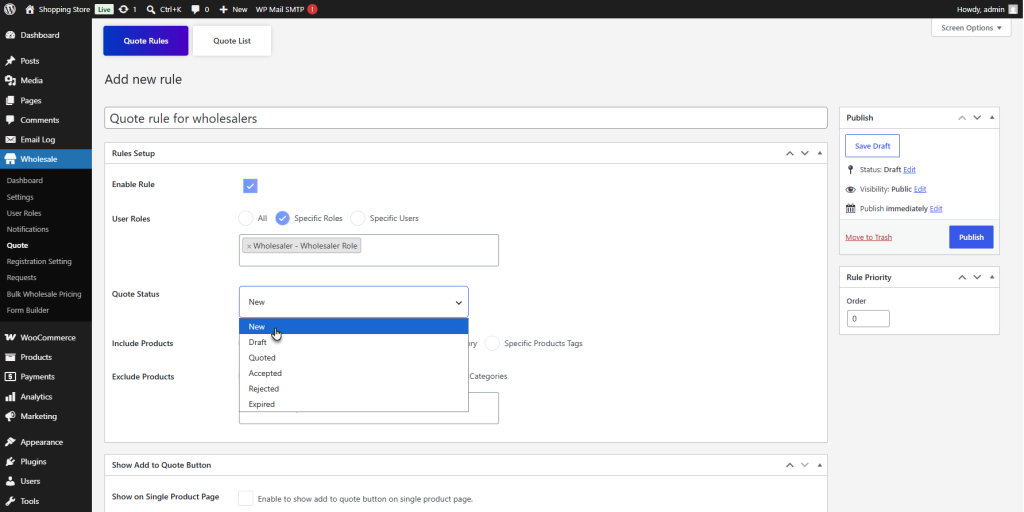
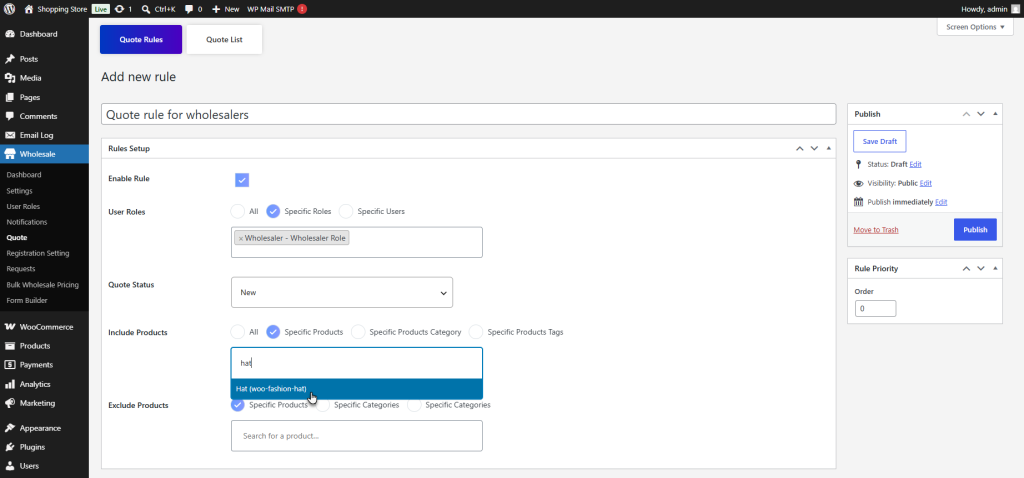
- Use Include Products and Exclude Products to define what can be quoted. By All Products, Specific Products, Specific Categories, or Specific Product Tags.
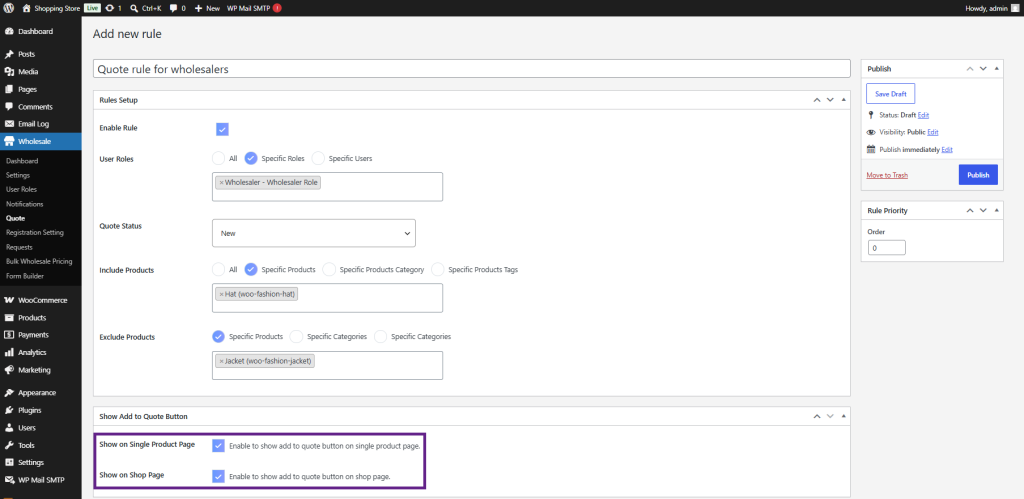
- Under Show Add to Quote Button, choose Show on Single Product Page, Show on Shop Page, or both.
- Set the Rule Priority: lower numbers run first when rules overlap.
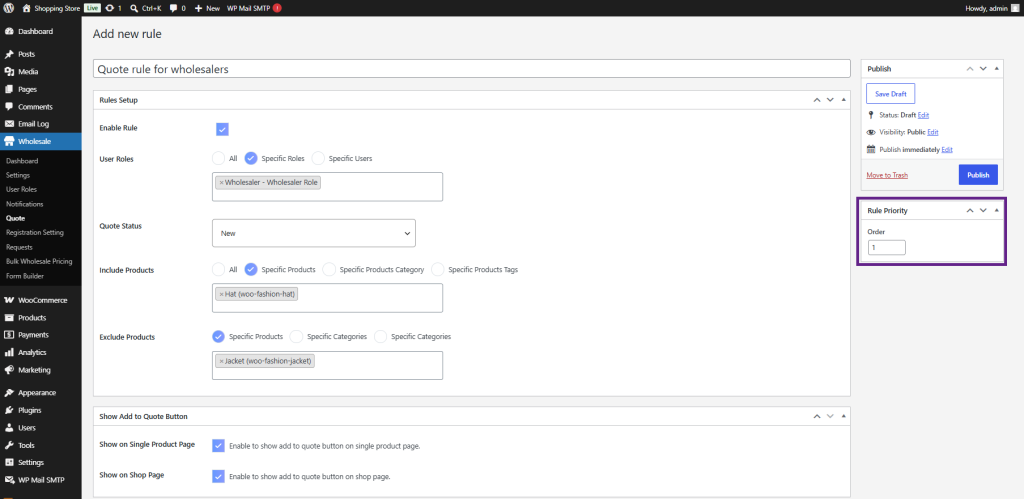
Click Publish to save. The Add to Quote button is now live for matching users.
Step 3: Create the customer Quote List page
Your buyers need a page to review and submit their quotes. Go to Wholesale > Settings > Quote > Quote List Page and choose one of two methods:
- Automatic: Click Create Quote List Page and the plugin builds it for you.
- Manual: Copy the [wc-quote-request-page] shortcode, create a new page under Pages > Add New, paste it in, and publish.
![WordPress editor showing a Quote List block containing a shortcode [wc-quote-request-page] framed by a purple border.](https://wpexperts.s3.amazonaws.com/wp-content/uploads/store/2026/06/30072536/y19-1024x436.png)
Step 4: Fine-tune/Customize Your B2B Customers Experience (Optional)
From Wholesale > Settings > Quote, tailor the workflow to your store:
- General Settings: Empty the quote after submission, allow re-quotes, and enable Convert to Order, Cart, or Checkout.
- Quote PDF: Upload your logo, choose a template, and attach the PDF to emails.
- Quote Emails: Turn on notifications for each stage of the quote lifecycle.
- Quote Form Builder: Add custom fields and protect the form with reCAPTCHA.
That’s it. Your WooCommerce B2B store is ready to take its first quote request.
Who Should Switch to OR Get B2B Wholesale for WooCommerce with RFQ?
If quoting is already part of how you sell: distributor pricing, dealer deals, bulk and mixed carts, custom or made-to-order products, built-in RFQ is for you. It’s just as useful for hybrid B2B + B2C stores that want a quiet “Request a Quote” path for wholesale buyers. While retail customers check out as normal.
And because it lives inside B2B Wholesale for WooCommerce, it sits right next to your wholesale pricing, roles, registration, and bulk ordering. One plugin, one connected flow, instead of a stack of tools duct-taped together.
The Bottom Line
Quoting shouldn’t be the thing that slows down a sale. With Request a Quote now native to B2B Wholesale for WooCommerce, you keep the items, negotiation, PDF, emails, and final order in one place. It’s just that your B2B buyers get a faster, more confident way to say yes to your deals.
If RFQ is part of your B2B playbook, update to v3.1 of B2B Wholesale for WooCommerce and try it now. Your next quote could close before the old email thread would’ve even started.
Get Wholesale for WooCommerce with RFQ now