If you’re selling to business buyers, pricing is everything. Retail pricing doesn’t work for wholesalers. They expect bulk discounts, tiered rates, and role-specific deals that reflect the volume they’re buying. Knowing how to set up wholesale pricing in WooCommerce correctly is what separates a store that attracts serious B2B buyers from one that loses them at first glance.
This guide covers everything. You’ll learn pricing models, why default WooCommerce falls short, and a step-by-step walkthrough using the top Wholesale plugin for WooCommerce.
What Exactly Is Wholesale Pricing in WooCommerce?
Wholesale pricing is a discounted price structure offered to approved business buyers who purchase in bulk. Instead of paying the standard retail price, wholesale customers get lower per-unit rates in exchange for buying larger quantities. Or they usually commit to regular orders.
It’s not just about slapping a discount on a product. A proper wholesale pricing system in your WooCommerce backend accounts for:
- Who is the buyer?
- How much are they buying?
- Which product categories are they ordering from?
Wholesale Pricing vs. Retail Pricing
| Pricing Factor | Retail Pricing | Wholesale Pricing |
| Who sees it | Everyone | Approved buyers only |
| Price type | Fixed single price | Role-based or tiered |
| Min. quantity | None | Often required |
| Discount logic | Coupons or sales | Automatic by role |
| Margin goal | Higher per unit | Higher volume |
The fundamental difference is that retail pricing is passive. One price for everyone. Wholesale pricing is active; it responds to who’s buying and how much they’re buying.
Will Setting Up Wholesale Pricing Increase Your e-Commerce Store Sales?
Setting up WooCommerce wholesale pricing properly will directly impact your bottom line in a few ways.
Business or wholesale buyers place larger, more frequent orders than retail customers. When you give them automatic pricing that reflects their volume, you remove friction from repeat purchasing. They don’t need to negotiate or request quotes; the price they expect is already there when they log in.
Tiered pricing takes it further. When B2B buyers can see that ordering 50 units saves them significantly more than ordering 20, you’re actively promoting larger orders. That’s not a discount eating into your margin; that’s a margin strategy.
Types of Wholesale Pricing Models in 2026
Role-Based Pricing
Every wholesale customer is assigned a user role, and each role has its own pricing. A Standard wholesaler might get 20% off retail. A Premium wholesaler gets 30%. Same product, different price, based purely on who’s logged in. This is the backbone of WooCommerce wholesale pricing and the starting point for any B2B setup.
Tiered Pricing
Tiered pricing creates quantity-based price breaks on individual products. Buy 1–9 units at $20 each; buy 10–49 at $17 each; buy 50+ at $14 each. The more they buy, the better the price. It works at the product, category, or global level and takes priority over flat wholesale prices when both are configured.
Cart-Based Discounts
Instead of pricing per product, cart-based discounts look at the customer’s total cart (total quantity or total value). And apply a discount when a threshold is met. Buy anything totaling over $500 and get 10% off the whole cart. It’s a flexible way to reward big orders without complicating product-level pricing.
Why Default WooCommerce Falls Short When it Comes to Wholesale Pricing
Out of the box, WooCommerce has no concept of wholesale pricing. There’s no user role system for buyers, no tiered pricing engine, no minimum quantity enforcement, and no way to automatically show different prices to different customers.
You can create coupons, but those are manual and public. You can run sales, but those apply to everyone. There’s no built-in way to say, “This customer sees $14, that customer sees $20, and that third customer sees $11.50.” All automatically based on who’s logged in. Part of that same challenge is how to hide wholesale prices and products from retail customers — something default WooCommerce can’t handle without a dedicated plugin.
That’s exactly the gap Wholesale for WooCommerce fills. Get it from the WooCommerce marketplace now.
Step-by-Step: How to Set Up Wholesale Pricing in WooCommerce
Step 1: Assign Wholesale User Roles
Before any pricing work begins, you need to assign roles to it. Roles are the engine behind all WooCommerce wholesale pricing. They tell the system who gets what discount.
- Go to Wholesale → User Roles and click Add New Role
- Enter a name (e.g., Standard, Premium, Distributor), a slug, and a short description
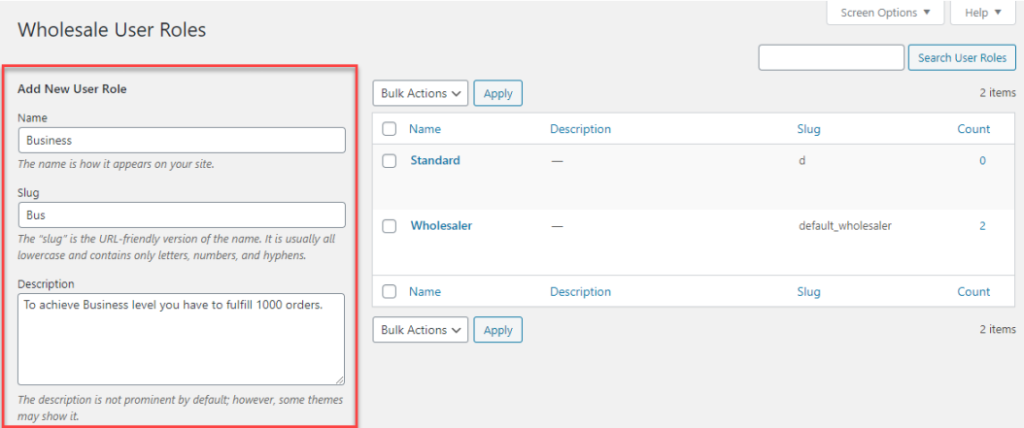
- Choose Single Role if all wholesalers get equal pricing, or Multiple Roles for tiered buyer levels
- Set a Default Role so every approved registrant is automatically placed at the entry level
- Configure tax exemptions, disable specific payment gateways, or restrict shipping methods per role if needed
- Click Save
Repeat this for each pricing tier you want. Each role becomes an independent pricing layer in your store.
Step 2: Set Pricing Per Role
The plugin offers three levels of pricing, applied in priority order: product-level overrides category-level, which overrides global.
Global Pricing applies a discount across your entire catalog:
- Go to Wholesale → Settings → Wholesale Price Global
- Select the wholesale role you want to configure
- Check Enable Role
- Choose Fixed (flat price) or Percentage (e.g., enter 80 to give 20% off)
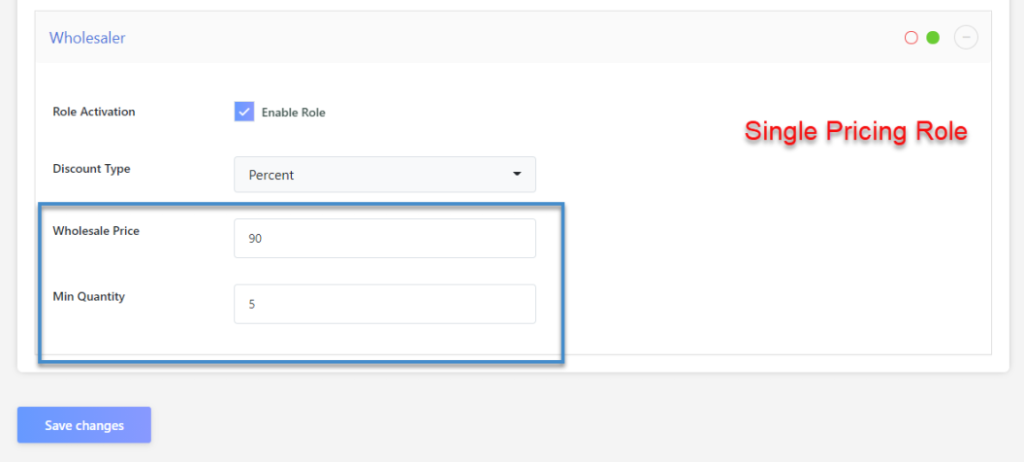
- Enter the wholesale value and set a minimum quantity
- Click Save Changes
Category Pricing targets specific product groups:
- Go to WooCommerce → Products → Categories and edit a category
- Scroll to the Wholesale Role section, enable the role
- Set the discount type and price
- Enter the minimum quantity
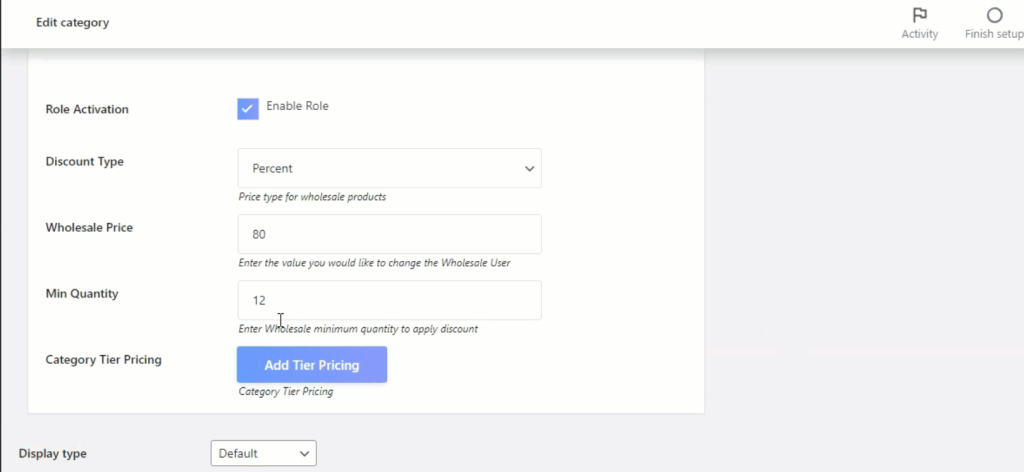
- Scroll down and click Update
Product Pricing, the most granular level:
- Edit any product and open the Wholesale tab
- Check Enable Wholesale role
- Select the discount type, enter the wholesale price, and the minimum quantity
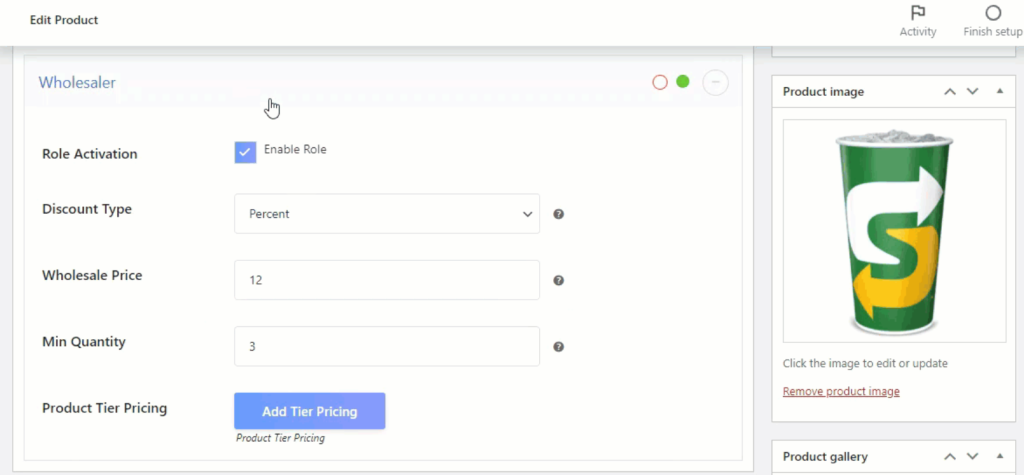
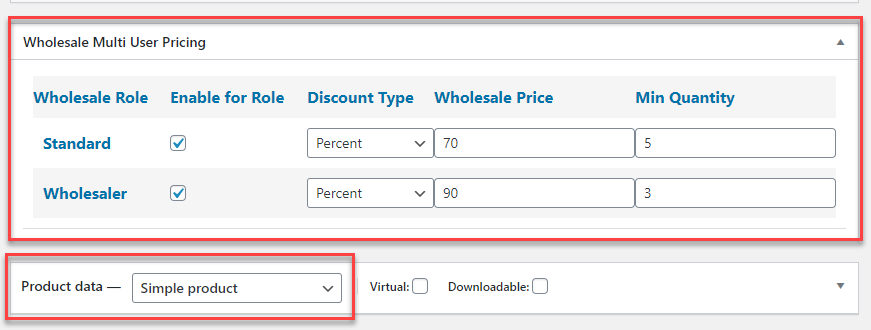
- For variable products, set pricing per variation individually
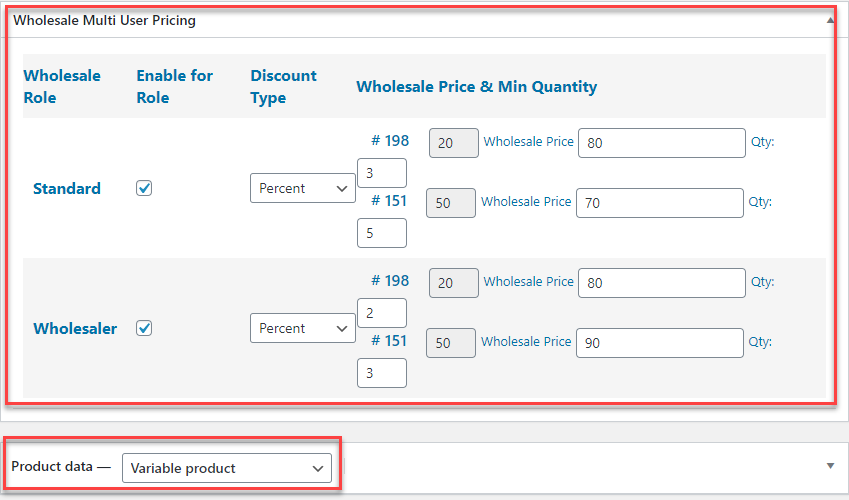
- Click Update
Step 3: Add Tiered Pricing
Tiered pricing is how you turn WooCommerce bulk pricing from a flat discount into a genuine volume incentive.
- Edit a product and go to the Wholesale tab
- Enable the role and set a base wholesale price
- Click Add Tier Pricing
- Enter your quantity ranges and corresponding prices, for example:
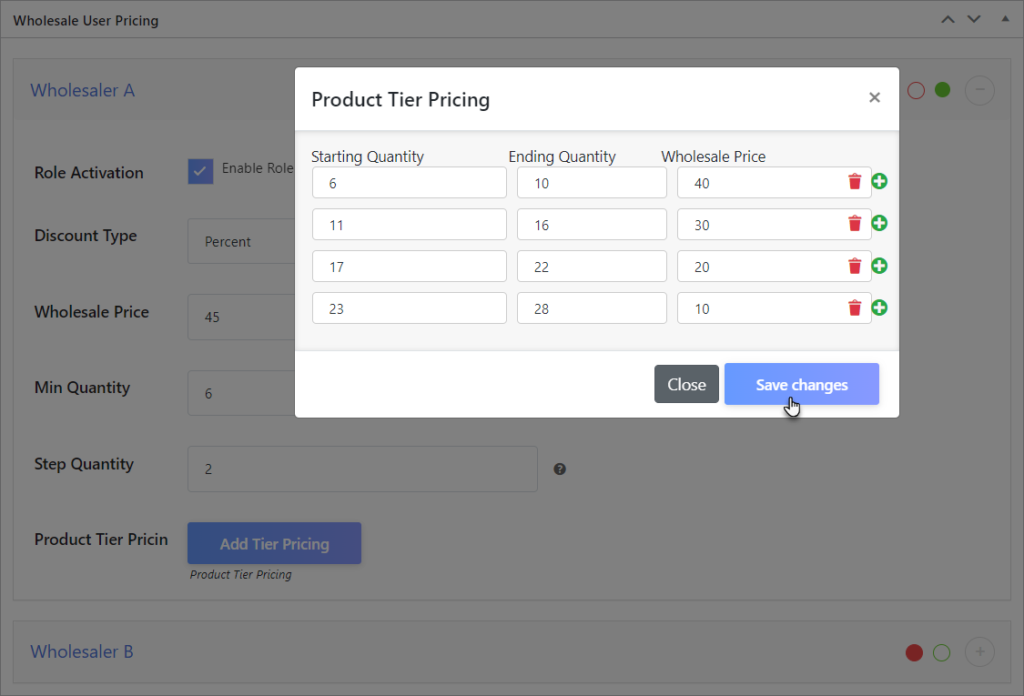
- 6–10 units: $40
- 11–16 units: $30
- 17-22 units: $20
- 23-28 units: $20
- Click Save Changes, then Update the product
You can also set tier pricing at the category level (edit a category → Wholesale Role section → Add Tier Pricing) or globally from Wholesale → Settings → Wholesale Price Global. Tier pricing always takes priority over flat wholesale prices when both are active.
Pro Tip: If you just want to add tiered pricing to your WooCommerce store, go with the Tiered Pricing for WooCommerce plugin. This extension will instantly and smoothly insert tiered pricing tables in your products. You can also get the Tiered pricing product table plugin from the WooCommerce marketplace.
Step 4: Configure Bulk and Cart-Based Discounts
For store-wide bulk incentives based on cart totals or quantities, use the Cart Total Discount feature.
- Go to Wholesale → Settings → Cart Total Discount
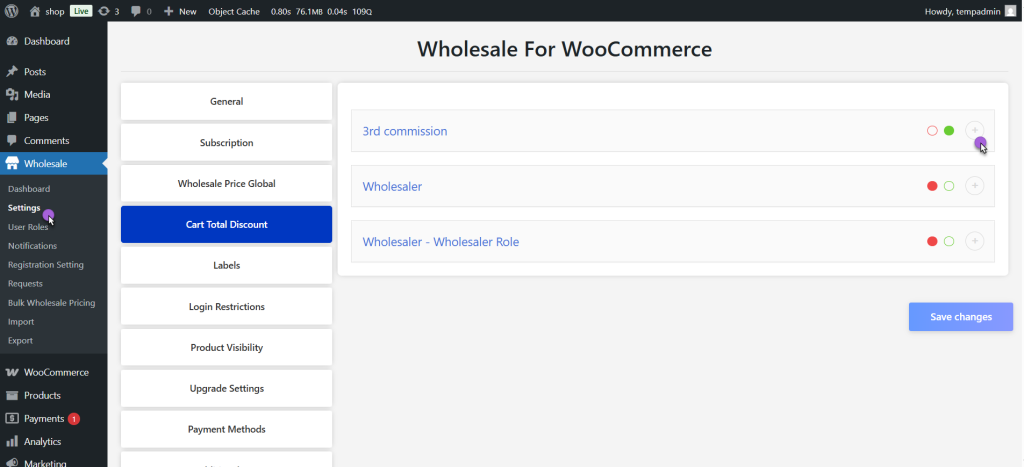
- Click the + icon next to the role you want to configure
- Choose Fixed or Percentage as the discount type
- Set Tier Discount On to either Quantity or Amount
- Click Add Discount and configure your ranges:
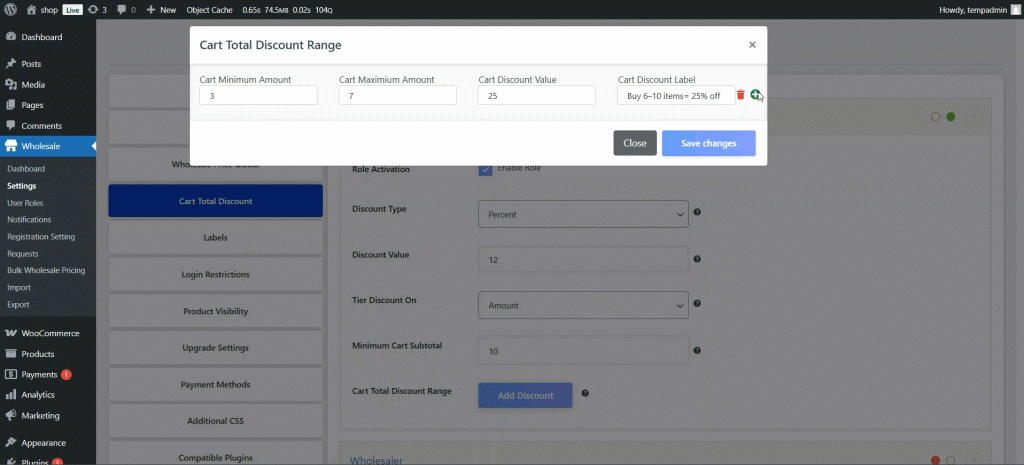
- Enter the minimum and maximum cart quantity or subtotal
- Enter the discount value for that range
- Add a label (e.g., “Buy 10–20 items = 12% off”)
- Add multiple tiers by clicking the plus button
- Set a Default Discount Value as a fallback for buyers who don’t hit any tier
- Click Save Changes
You can also use Bulk Wholesale Pricing (Wholesale → Bulk Wholesale Pricing) to assign prices across your catalog in one go.
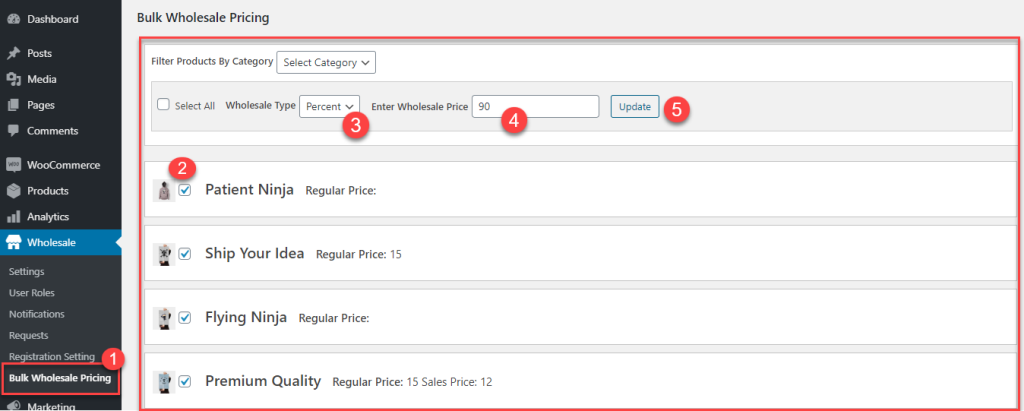
Search by product name, SKU, or role, select products, and apply pricing without editing each product individually. Or export a CSV, edit prices in a spreadsheet, and import back.
Conclusion
Learning how to set up wholesale pricing in WooCommerce properly is one of the highest-leverage things you can do if you’re selling to business/B2B buyers. The right pricing structure attracts better customers, increases order sizes, and builds the kind of long-term supplier relationships that retail stores simply can’t offer. If you’re still in the early stages, adding wholesale to WooCommerce in 2026 is a logical first step before diving into pricing configuration.
Wholesale for WooCommerce gives you role-based pricing, tiered quantity discounts, cart-based bulk incentives, and a bulk pricing manager — all without touching a line of code. It’s the most complete solution for WooCommerce wholesale pricing available today. For a broader look at how different plugins handle B2B dashboards and analytics, the WPExperts store is a good place to explore what’s available across the WooCommerce ecosystem.
Set it up once, and your pricing works for you automatically, every single order.