Running both retail and wholesale from the same WooCommerce store is smart business. But only if these two worlds stay separate. When retail customers land on your wholesale prices, it creates confusion, undercuts your retail margins, and makes your pricing strategy look inconsistent. The fix is to properly hide prices & wholesale products from retail customers in WooCommerce.
Relax, cause this guide addresses these concerns of yours:
- How to hide product prices in WooCommerce
- How to restrict product visibility by role
- How to create a clean separation between your retail customers and B2B wholesale shoppers
Why You Should Hide Wholesale Content from Retail Customers
Most store owners set up wholesale pricing and leave everything visible to everyone. That’s a mistake that costs more than it seems. When retail buyers see wholesale prices, they feel cheated about the time when they paid you more. When guests can browse your wholesale catalog freely, your pricing leverage disappears. And when there’s no access control, anyone (including competitors) can see exactly how you structure your margins.
Hiding wholesale content isn’t just about privacy. It’s about running a professional B2B operation that wholesale buyers actually trust and increasing your sales.
| What Happens Without Hiding Products & Prices in WooCommerce | What Happens With Hiding Products & Prices in WooCommerce |
| Retail customers see wholesale prices | Each customer sees only their relevant pricing |
| Guests can browse your B2B catalog freely | Wholesale catalog stays private and protected |
| Price inconsistency damages brand trust | Consistent pricing builds buyer confidence |
| Competitors can analyze your margin structure | Your pricing strategy stays confidential |
| Wholesale buyers question your professionalism | B2B buyers see a dedicated, serious operation |
What You Can Actually Hide in WooCommerce
Before jumping into setup, it helps to know exactly what you can control in WooCommerce. A good visibility system lets you hide four things independently:
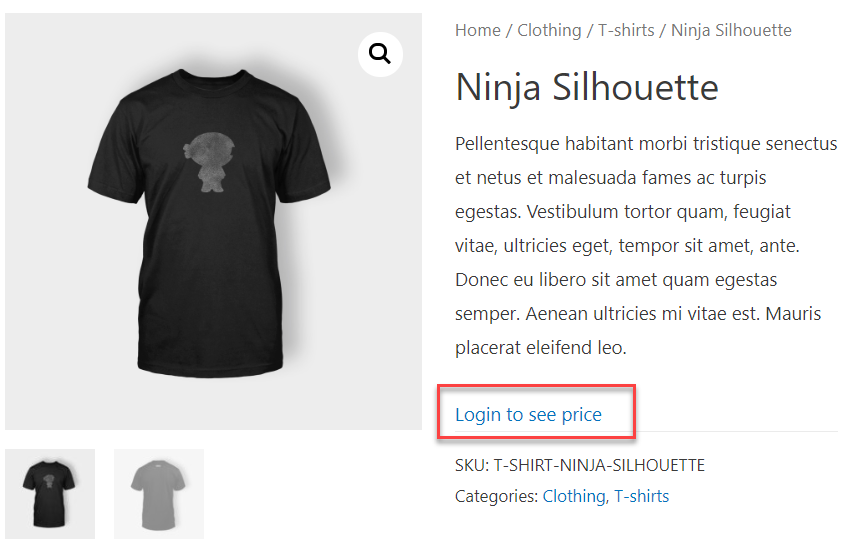
1. Hide Product Prices
Hide the price display entirely for non-logged-in users, retail customers, or specific roles. Replace it with a message that directs them to log in or register for wholesale access.
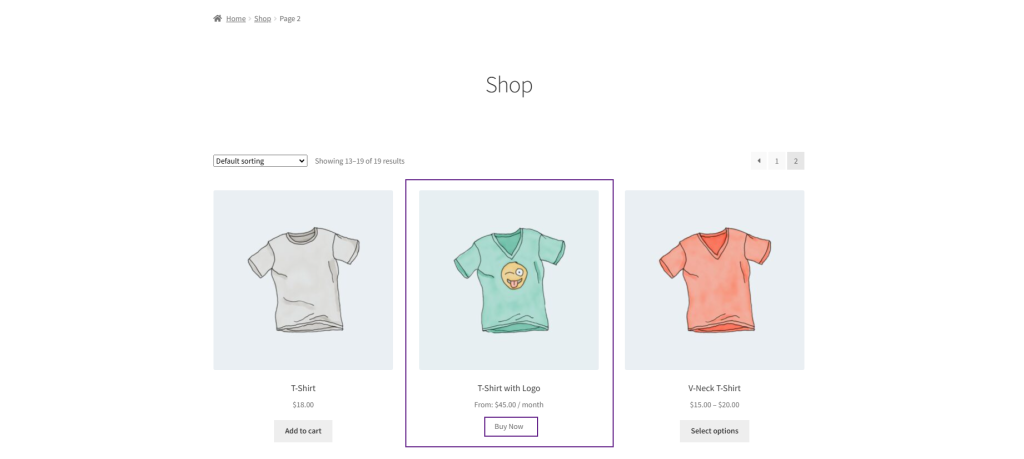
2. Hide Add to Cart Button
Remove the ability to purchase for users who shouldn’t be buying at that price point. You can replace the button with a custom message or leave it blank entirely.
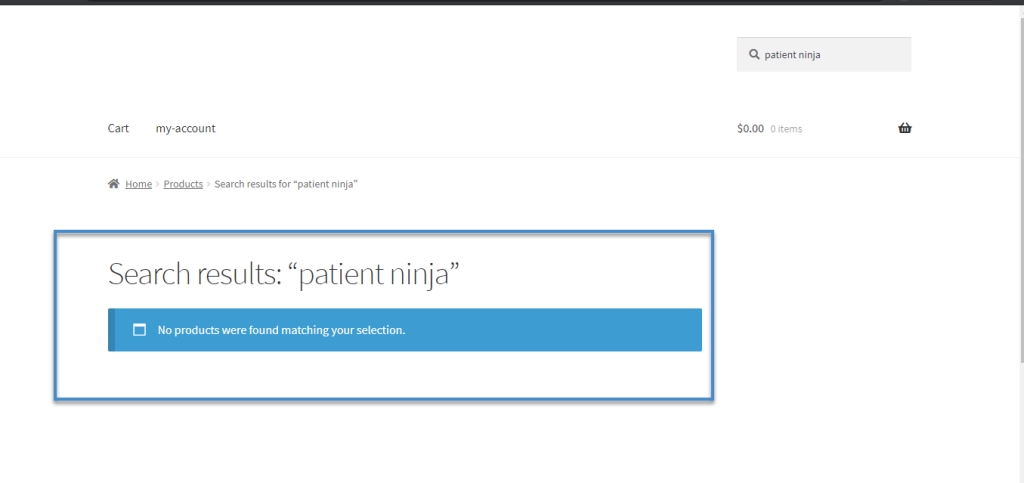
3. Hide Entire Products
Hide specific products from appearing in your shop, search results, or category pages for certain user types. A product that doesn’t exist for retail customers simply won’t show up for them.
4. Hide Product Categories
Apply visibility rules at the category level so every product inside that category inherits the same restrictions without individual configuration.
What’s the Best Way to Hide Wholesale Products and Prices in WooCommerce?
The honest answer is that the default WooCommerce can’t do any of this. There are no built-in visibility controls based on user roles, no price hiding options, and no way to segment what different customer types see without custom development.
WooCommerce wholesale plugin by WPExperts specifically solves this issue and converts your store into a complete B2B powerhouse. It’s the most complete WooCommerce wholesale plugin available for role-based visibility control. And it handles everything described in this guide through a straightforward settings interface. With it you can;
- Hide prices globally, per category, or per individual product based on user role
- Replace hidden prices with fully custom messages that guide buyers toward registration
- Restrict entire products or categories from appearing for retail customers and guests
- Remove the Add to Cart button for specific roles, products, or categories
- Create a completely private wholesale store accessible only to approved buyers, and much more
You can also install Wholesale for WooCommerce from the WooCommerce marketplace.
Step-by-Step: How to Hide Wholesale Products and Prices in WooCommerce
Step 1: Restrict Products by Role
This controls which products appear in your store depending on who’s logged in. You can apply restrictions at the individual product level or across an entire category.
For individual products:
- Edit any product and go to the Wholesale tab
- For single role setups, enable the Product Visibility option to hide that product from wholesale users
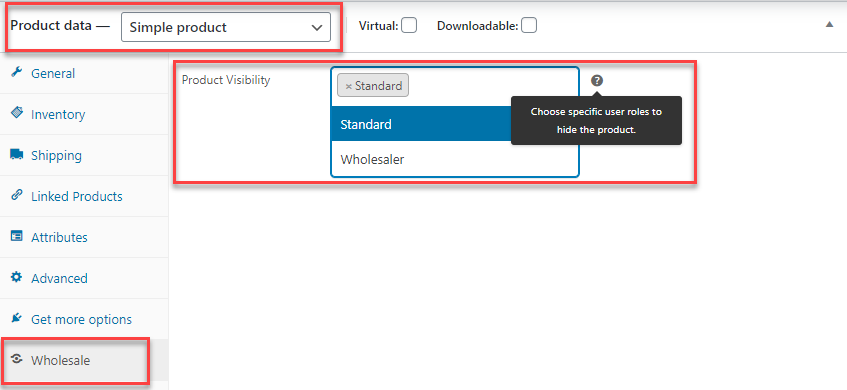
- For multiple role setups, select the specific wholesale role to hide the product from
- Click Update
For product categories:
- Go to WooCommerce → Products → Categories and edit a category
- Enable Product Visibility to hide all products in that category from wholesale users
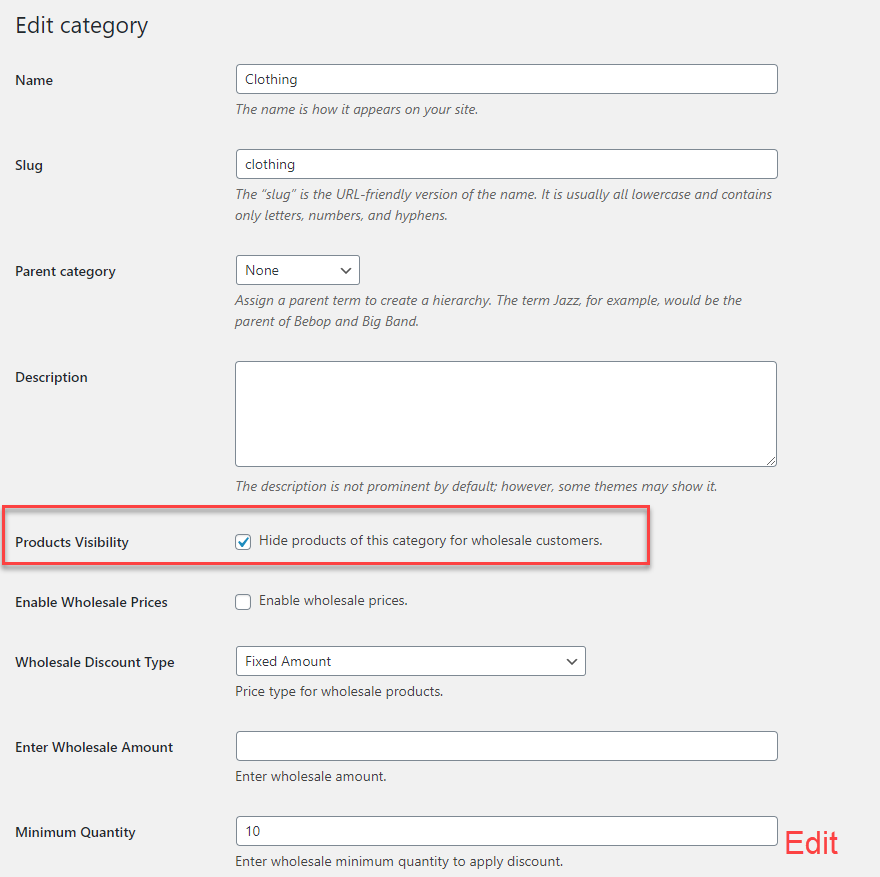
- For multiple roles, select which role the restriction applies to
- Click Update Category
To hide wholesale products globally from all non-wholesale visitors:
- Go to Wholesale → Settings → Product Visibility
- Enable “Restrict wholesale products globally from non-wholesaler customers.”
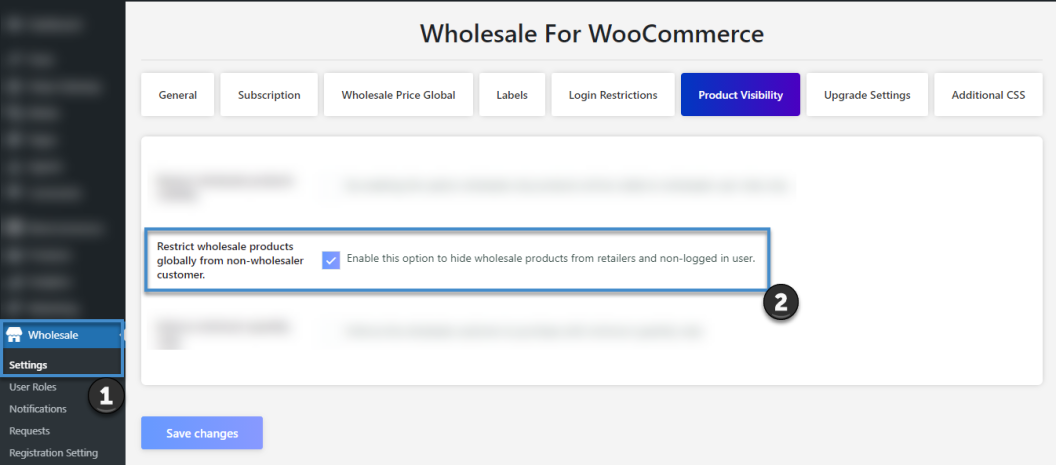
- Click Save Changes
Once this is active, guests and retail customers won’t see wholesale products anywhere in your store — not in the shop, not in search results, not in categories.
Step 2: Hide Prices from Specific Users
This is one of the most commonly needed controls for stores running both retail and wholesale. Here’s how to set it up properly.
- Go to Wholesale → Settings → General Settings
- Enable the Hide Price toggle
- Choose your scope. You can apply it to specific products, specific product categories, or specific user roles
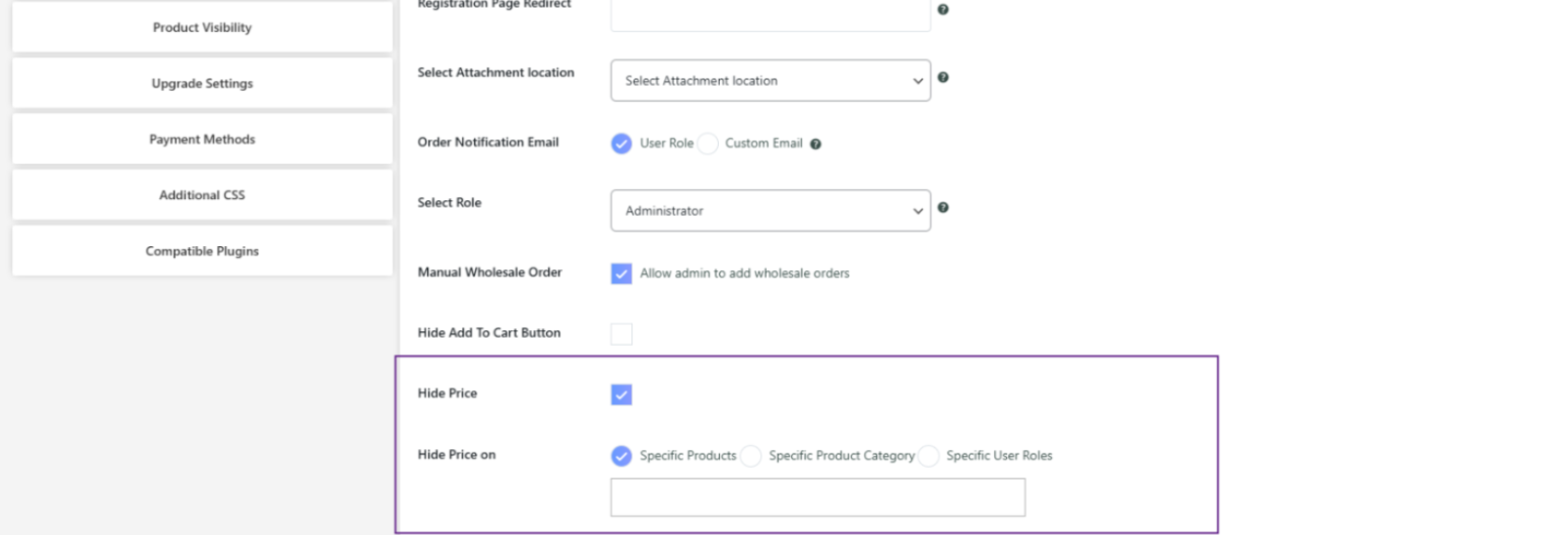
- Type the product name, category, or role into the relevant field and select it from the dropdown
- Click Save Changes
If you also want to hide prices from non-logged-in users in your WooCommerce stores, go to: Wholesale → Settings → Login Restrictions and enable Hide Price from there.
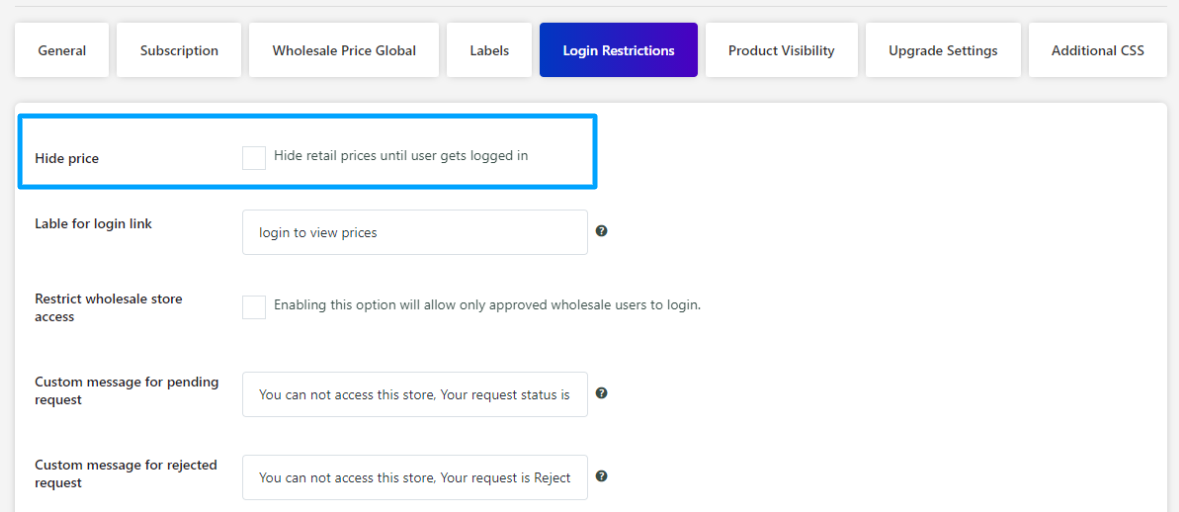
This applies the restriction to all guest visitors browsing your store. Getting this right is closely tied to how you structure wholesale pricing in WooCommerce overall — the two configurations work together to control exactly what each customer type sees and pays.
Step 3: Replace Price with a Custom Message
Hiding a price without replacing it looks broken. A custom message turns a blank space into a conversion opportunity. It directs visitors toward registration or login instead of just showing nothing.
- After enabling Hide Price (Step 2), find the Custom Message for Hide Price field
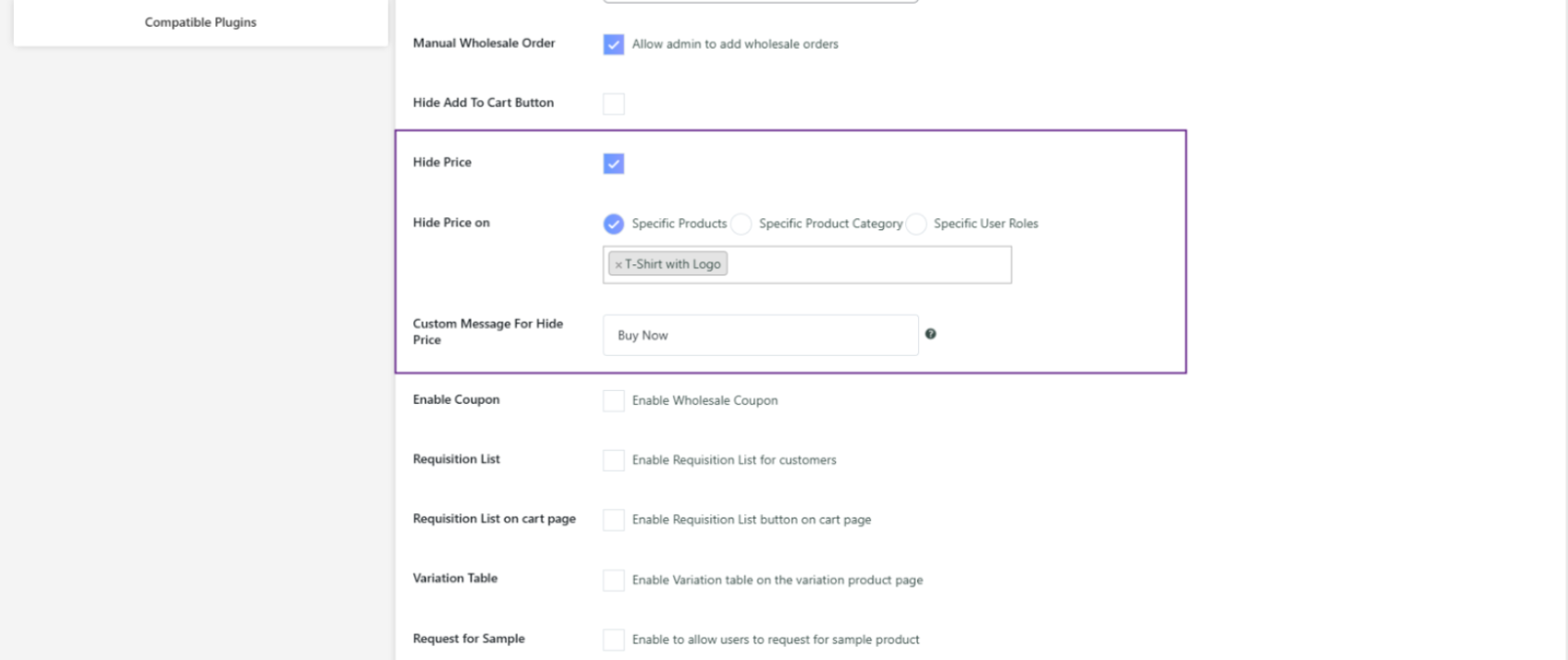
- Enter your message: Something like “Login to see wholesale pricing” or “Apply for a trade account to unlock pricing.”
- This message appears wherever the price would normally display on the shop page and single product page
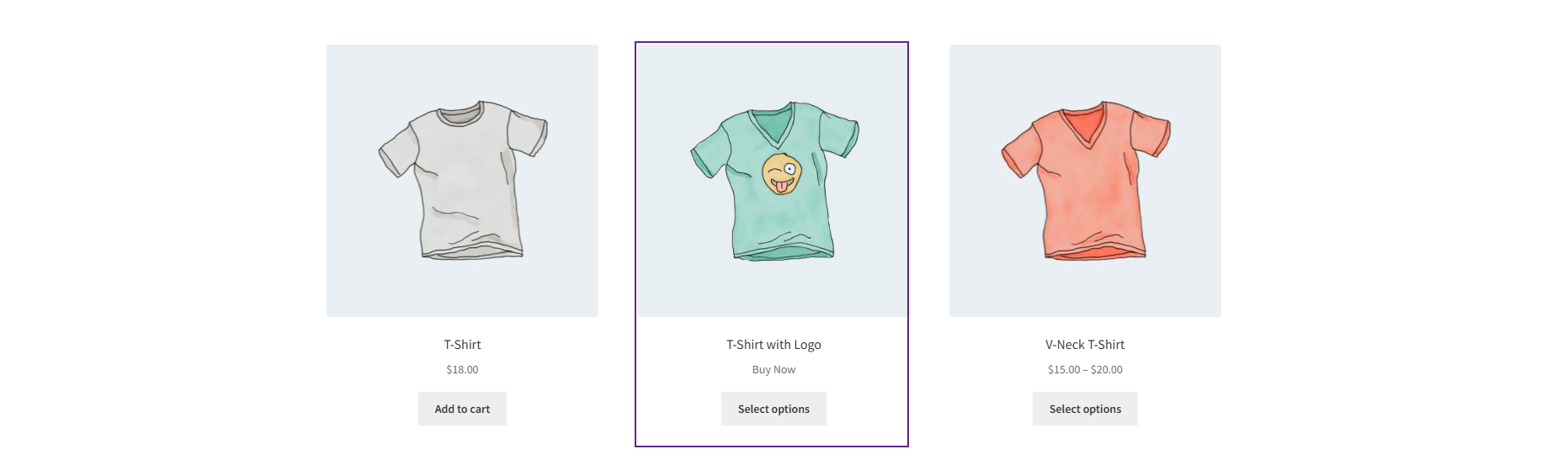
- Click Save Changes
You can write different messages, such as “Free” for different products, categories, or roles. It all depends on how you want to shape the B2B experience for your wholesale users.
Step 4: Create a Private Store Experience
If your wholesale operation is invite-only or you want zero public visibility into your B2B catalog, this is the setup for you.
- Go to Wholesale → Settings → Login Restrictions
- Enable Restrict Full Store Access
- Enter a custom message to display to guests and unapproved users, for example, “This store is available to approved wholesale buyers only. Apply for access below.”
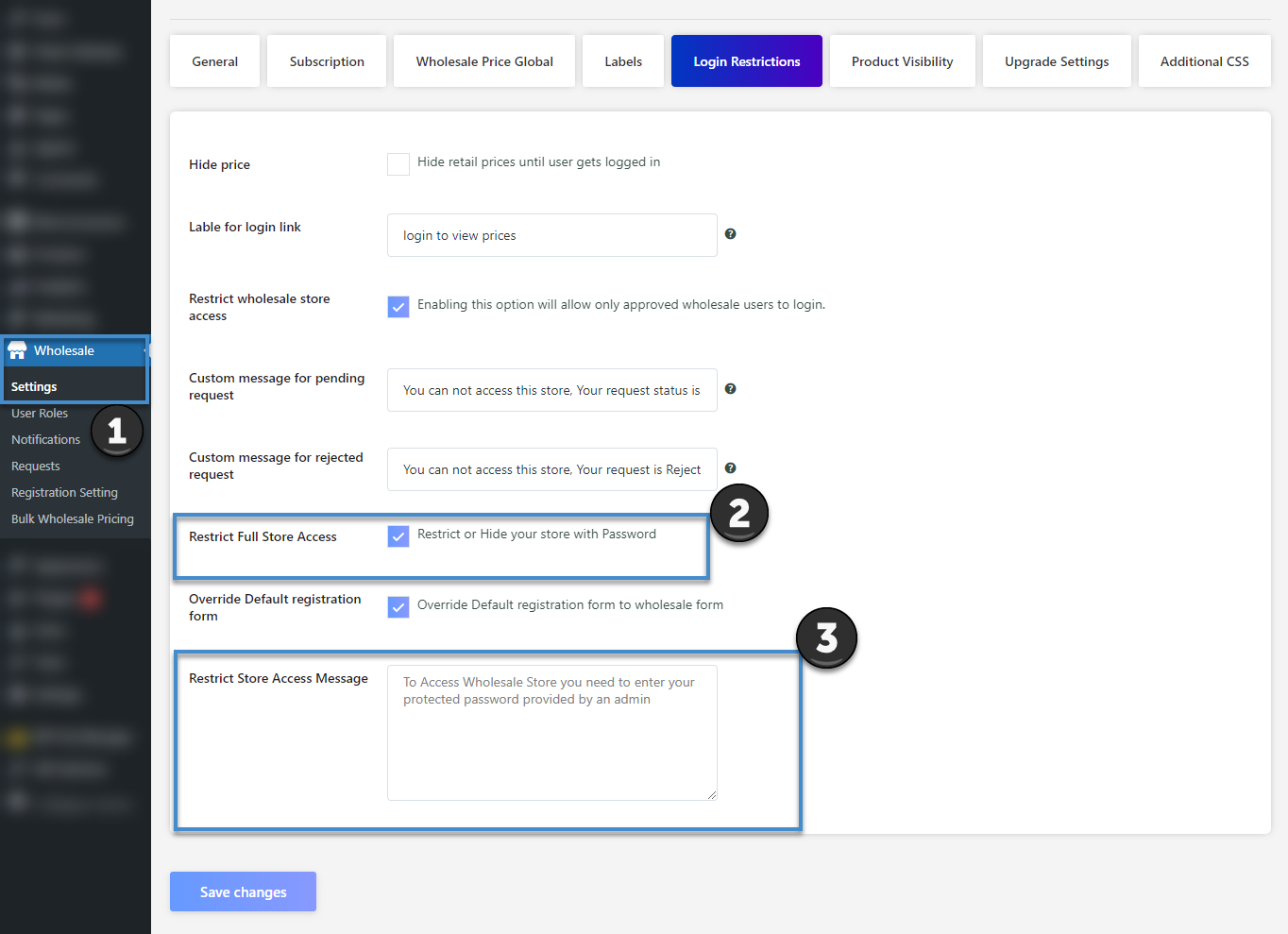
- Go to Wholesale → User Roles, edit your wholesale role, and set a Protected Password
- Only users with this password can access your store before their account is formally approved
Hiding the Add to Cart Button in WooCommerce:
- Go to Wholesale → Settings → General Settings
- Enable Hide Add to Cart
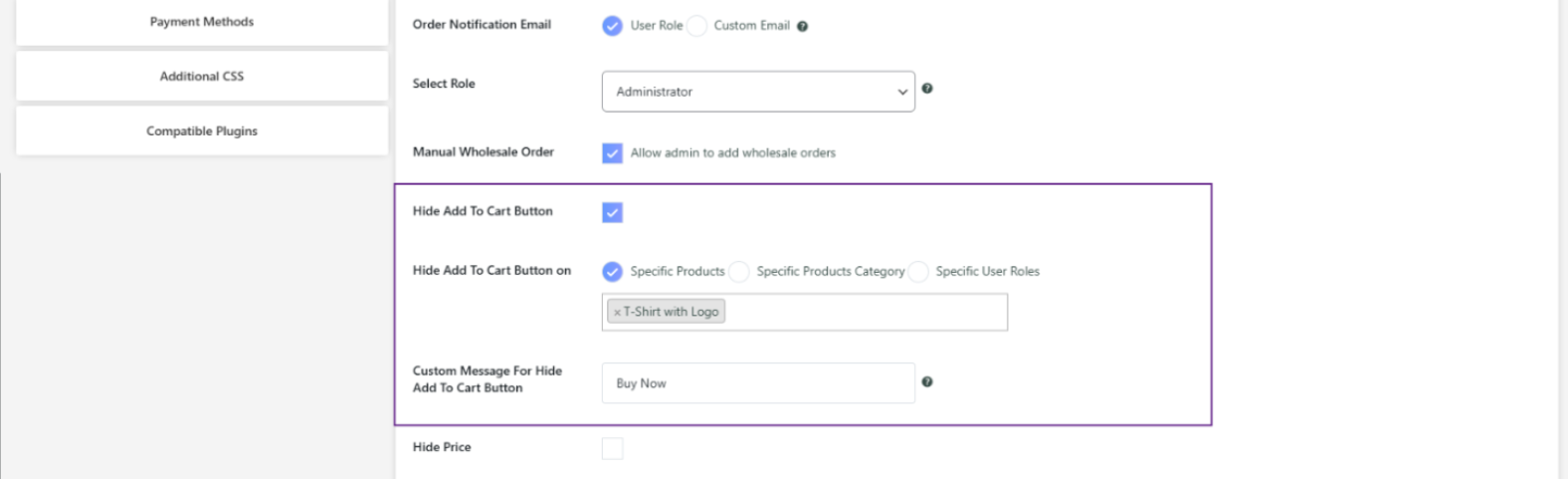
- Choose your scope: specific products, categories, or user roles
- Add a custom message to replace the button if needed
- Click Save Changes
If you still have any confusion, you can contact the team WPEpxerts for help or read the wholesale technical documentation for clarity.
Best Practices for Hiding Prices and Products in WooCommerce
Always Replace Hidden Prices with a Message
When a price is hidden, and there’s nothing in its place, visitors assume something is broken. A message like “Login for wholesale pricing” turns that moment into a lead generation opportunity.
Test Every Visibility Rule as a Guest and as a Retail Customer
Log out of your admin account and browse your store as a visitor. Then create a test retail account and do the same. What you see as an admin is never what your customers see.
Use Category-level Restrictions for Large Catalogs
For stores with dozens of wholesale-only products, applying visibility rules per category saves significant time. It automatically covers future products when you add them to the right category.
Don’t Hide too Much too Early
If you’re just starting wholesale, consider showing teaser pricing to non-logged-in users from Wholesale → Settings → General → Non-Logged-In Settings. Showing a wholesale price with a “Login to order at this price” message can actually drive more registrations than hiding. If you haven’t set up your wholesale store yet, adding wholesale to WooCommerce in 2026 is worth doing before configuring visibility rules.
Keep Your Custom Messages Action-Oriented
“Login to see pricing” is okay. “Apply for a wholesale account and get trade pricing instantly” is better. The message should tell visitors what to do next, not just explain what’s missing.
Common Mistakes to Avoid When Hiding Wholesale Products and Prices
Hiding Prices without a Clear Next Step
If a potential wholesale buyer lands on your store, sees no prices, and finds no obvious way to get access, they leave. Always pair price hiding with a visible registration link or call to action.
Applying Restrictions Only at the Product Level
If you hide individual products but forget to restrict the category page, retail customers can still browse a category that shows empty or incomplete product listings. Work top-down: set category and global rules first, then override at the product level where needed.
Not Testing After Configuration
Visibility rules interact with each other in ways that aren’t always obvious. A global restriction might override a product-level setting. Or a role-based rule might not apply to guest users the way you expect. Always test with real user accounts before going live. And if you’re using Wholesale for WooCommerce by WPExperts, you’ll tackle this issue easily.
Using the Same Visibility Rules for all Wholesale Roles
If you have multiple wholesale tiers, a Standard wholesaler probably shouldn’t see the same products as a Platinum distributor. Use per-role visibility settings to give each tier the right product access. Setting this up cleanly from the start is much easier when you set up automated user role assignments in WooCommerce so each buyer lands in the right tier automatically on registration.
Forgetting About Search Results and Related Products
Restricting a product from the shop page doesn’t automatically remove it from WooCommerce search results or related product sections. Make sure your global visibility settings are enabled to cover these entry points too.
Conclusion
Keeping your wholesale and retail experiences separate isn’t complicated, but it does require the right tool. Default WooCommerce simply wasn’t built for this level of customer segmentation. Wholesale for WooCommerce handles role-based visibility, price hiding, custom messages, and private store access all from one place.
Set it up once, and your store shows every customer exactly what they should see; nothing more, nothing less. That’s what a professional B2B operation running on WooCommerce should look like.