Are you still assigning user roles manually after every registration? Stop. Let us show you how to automate this with WooCommerce workflows.
If you’re running a WooCommerce store with different types of users, manually updating user roles after every registration process gets on anyone’s nerves. A user signs up as a wholesale buyer. However, their user role is still set to ‘Subscriber.’ Then you log in to your store, find the user, and update their user role. This process is repeated over and over and over.
The process is not difficult. It’s just that it never ends. This is where the Workflow feature in the best WooCommerce User Registration plugin comes in. Instead of doing this over and over and over again, with User Registration for WooCommerce, you simply automate it once. Then, every time someone signs up on your store, this process is done for you.
What Is the Workflow Feature, and Why Does It Matter?
Think of Workflows as your behind-the-scenes assistant. You define the rules, and the plugin does the work.
With a single workflow, you can automatically assign a user role the moment someone registers or changes their account status. All without touching a thing. You can even get specific about who gets what. Want the workflow to only run for users who selected “Wholesale” on your custom form? Done. Only for users from a specific country? Also done.
Here’s what makes the Workflow feature in the User Registration plugin for WooCommerce by WPExperts genuinely useful for store owners:
- Assign roles automatically based on registration form data
- Filter users by account status: Approved, Pending, or Rejected
- Target users by specific field values (e.g., Membership Type = Premium)
- Combine role assignment with an automated email so users know exactly what to do next
This kind of automation becomes especially valuable when you’re running a wholesale operation. If you’re still in the process of building that out, how to add wholesale to WooCommerce in 2026 is a solid starting point before layering in role automation.
How Do You Actually Set Up Automated User Role Assignments in WooCommerce on Registration?
Setting up automated user role assignment on registration for your WooCommerce store is simpler than it sounds. Here’s how to get a role assignment workflow running from scratch:
Step 1: Create a New Workflow
Head to WooCommerce > Workflow > Add New.
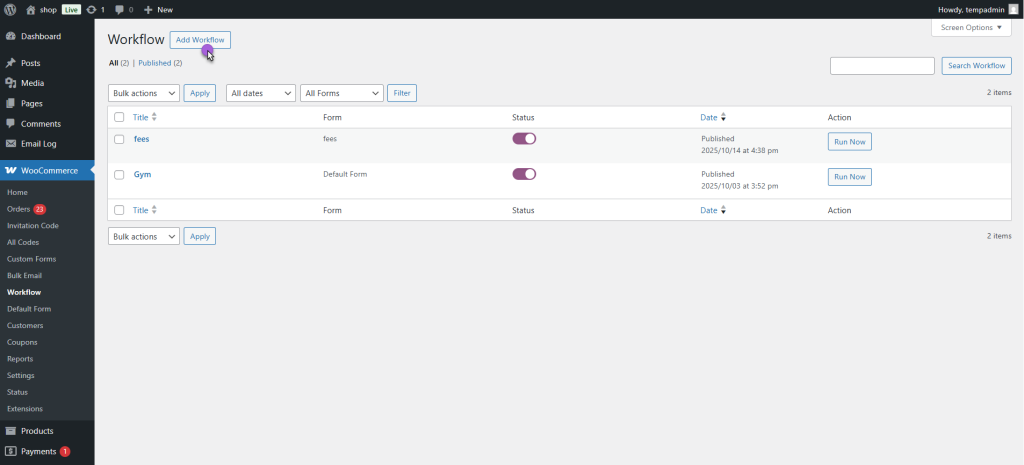
Give it a name that makes sense to you, like “Assign Wholesale Role on Registration.” This just helps you stay organized as your workflow list grows.
Step 2: Choose Your Form
Under General Settings, select the form this workflow should apply to.
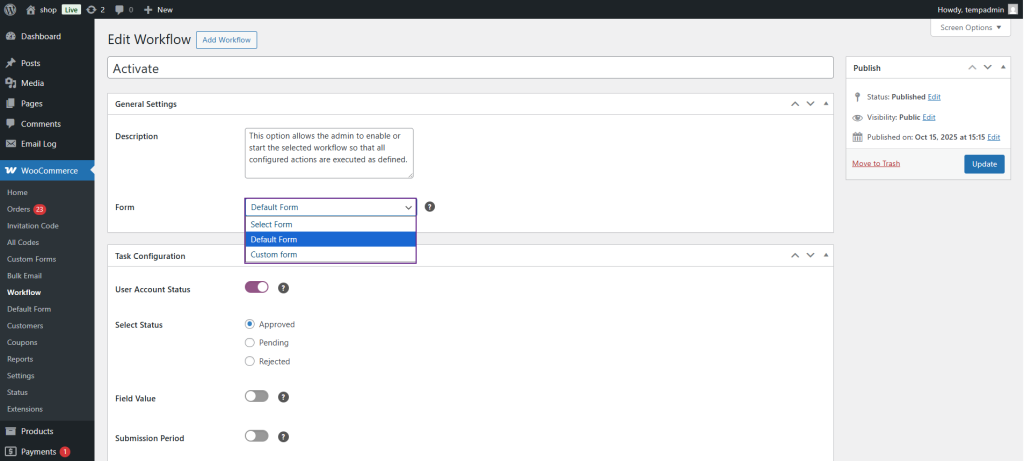
You can go with the Default Form or point it to a specific Custom Form, whichever one your users are actually filling out.
Step 3: Set Your Conditions
This is where you get to decide who the workflow applies to. Three filters are available:
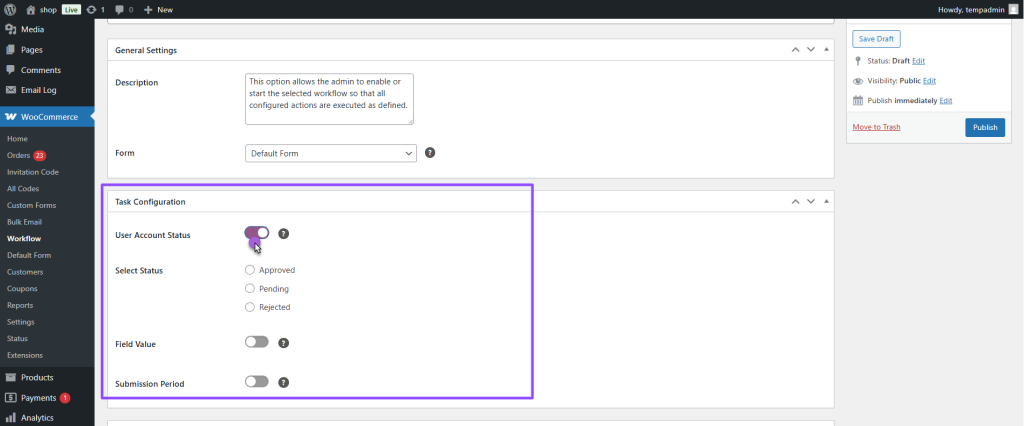
- User Account Status: Only run the workflow for users with a specific status (Approved, Pending, or Rejected)
- Field Value: Target users based on what they entered in the form, like Country = Canada or Plan = Premium
- Submission Period: Narrow it down by when users submitted the form, using a day range before or after the workflow was created
Step 4: Set the Action to Change User Role
Under Task Action, you’ll find Change User Role; click on the dropdown menu and select the role you wish to assign.
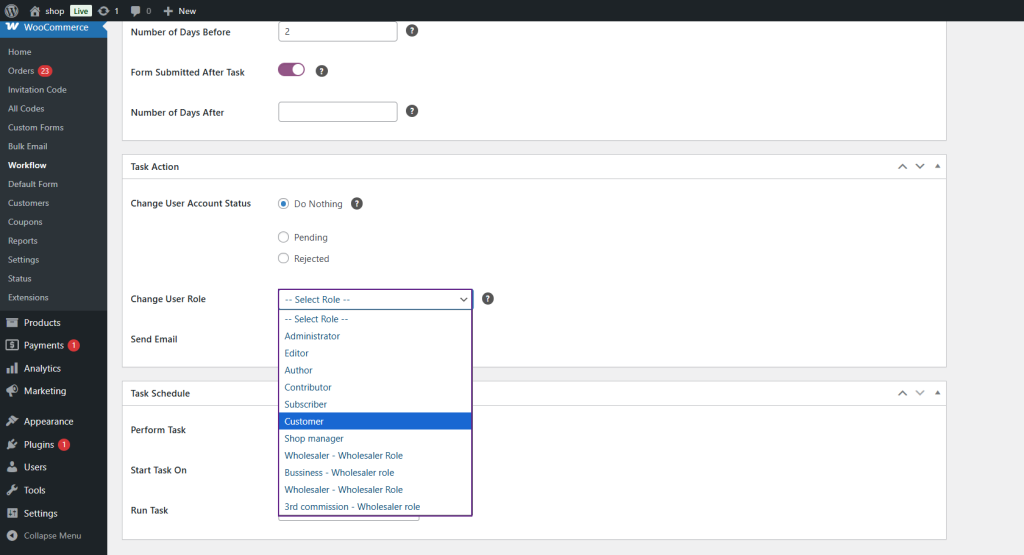
Every user who qualifies under the set rules will automatically be assigned this new role after the workflow is executed.
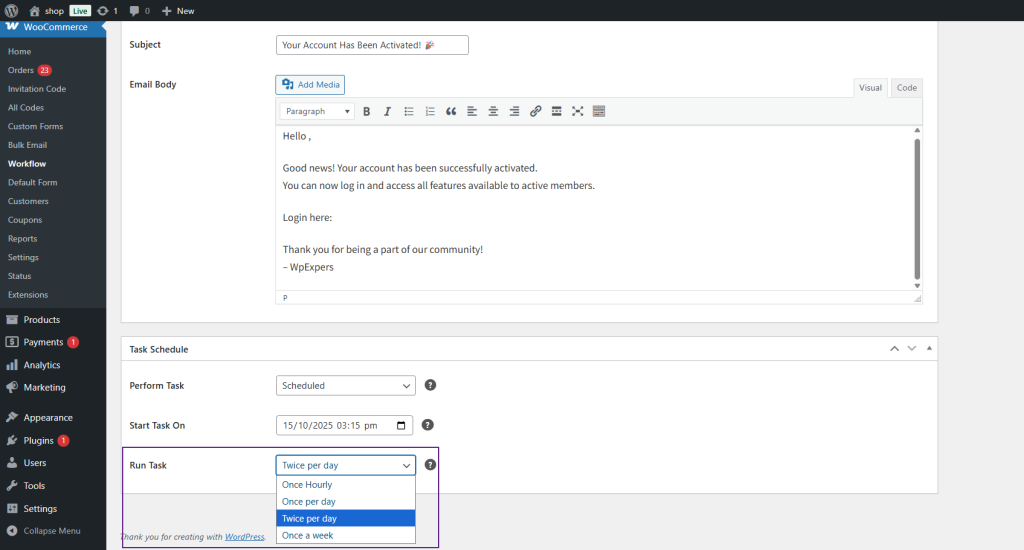
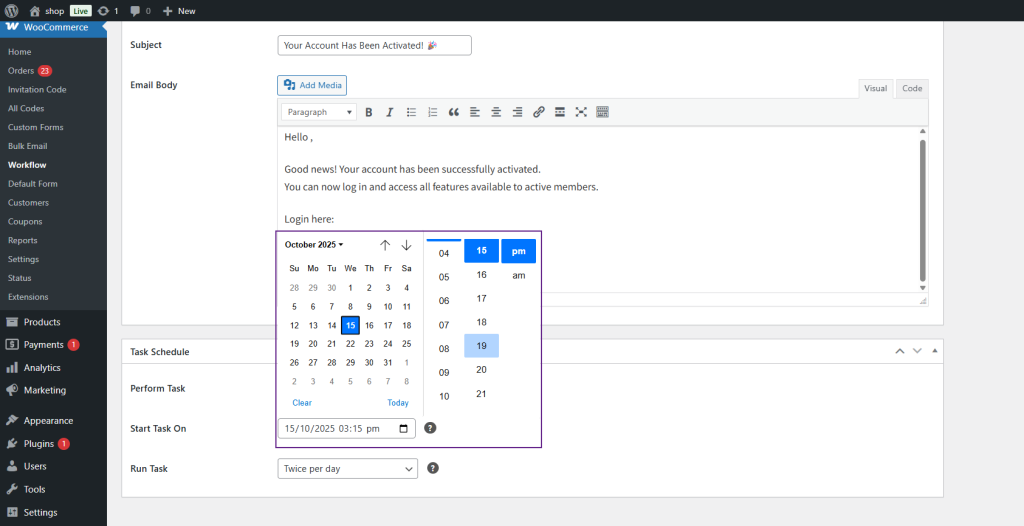
Step 5: Schedule It
You also have to decide when you wish to execute this workflow. You can execute it manually.
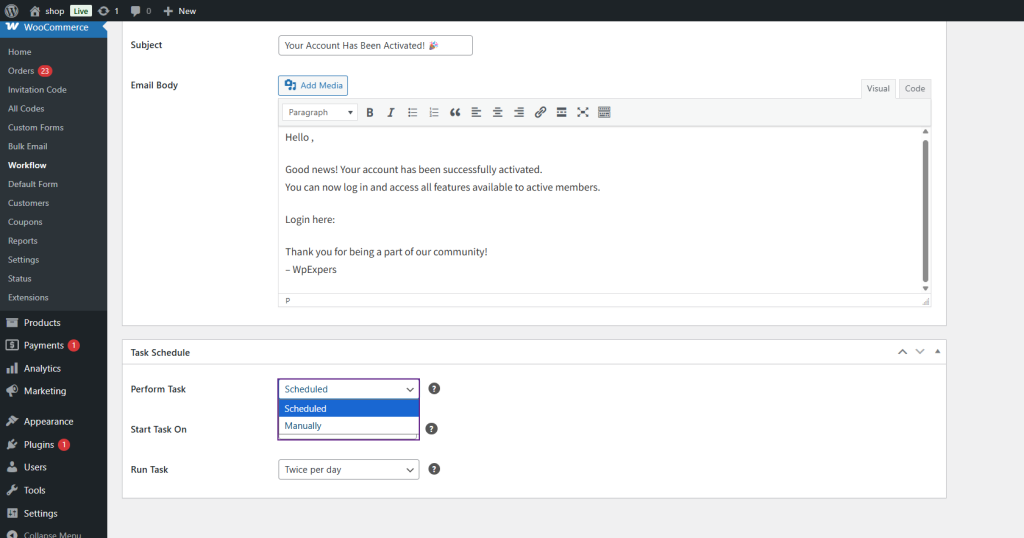
Or schedule it as you wish.
Just enter the date and click on Publish; you are done.
Quick Reference: Workflow Settings in WooCommerce at a Glance
| Workflow Setting | What It Does | Example Use Case |
| Form | Selects which registration form triggers the workflow | Custom form for wholesale buyers |
| User Account Status | Filters users by Approved, Pending, or Rejected | Only run for Approved users |
| Field Value | Targets users matching specific form field values | Country = Canada |
| Change User Role | Assigns a new role to matching users | Assign ‘Wholesale Customer’ role |
| Task Schedule | Runs once, hourly, daily, or weekly | Run once a day for new signups |
| Send Email | Notifies users when their role is updated | Welcome email with account details |
What Happens After the Automated Workflow for User Role Assignments Runs?
After executing the workflow, you’ll know how well it worked by looking in two places:
- Users > Requests: You’ll now see statuses updated for users’ accounts. For instance, a user who was previously Pending now shows Approved.
- You’ll also check Users > All Users: You’ll now see that the roles have been updated for all users according to what you chose in the workflow.
No spreadsheet. No manual edits. Just clean, accurate role assignments across the board. Once roles are in place for your wholesale buyers, the natural next step is making sure pricing reflects those roles — the WooCommerce Wholesale Pricing Guide covers how to set that up cleanly for each tier.
So, Is It Worth Setting Up Up Automated User Role Assignments on Registration in WooCommerce?
If your store has more than a handful of user types, absolutely yes. The Workflow feature in the User Registration for WooCommerce plugin takes a task you’d otherwise repeat indefinitely and turns it into a one-time setup. Roles get assigned correctly, users get onboarded faster, and you get your time back.
Pair it with the automated email action, and you’ve got a complete onboarding flow — role assigned, user notified — all without you being involved at all. That’s the kind of automation that actually makes a difference when you’re trying to grow. For stores managing both retail and wholesale buyers, how to hide prices and wholesale products from retail customers is the logical follow-up to role automation — keeping each buyer type seeing only what’s relevant to them.
And if you’re looking for more WooCommerce plugins to round out your B2B setup beyond registration and roles, WPExperts has a full range of tools built specifically for WooCommerce store owners.