If you’re selling globally, one thing is certain: customers don’t like guessing prices. You’ll need to automatically convert prices to their local currencies using an IP detection system in your eCommerce store.
When someone from Singapore lands on your store, let’s say it’s on WooCommerce and sees USD instead of SGD, they pause. They calculate. They wonder about exchange rates and hidden fees. That pause is small, but in eCommerce, a small hesitation costs real money.
That’s where the IP-based automatic currency detection feature in the Currency Switcher plugin for WooCommerce comes in for store owners. With the right setup, your WooCommerce store can automatically detect where visitors are coming from and instantly display prices in their local currency. No clicks. No dropdowns. No confusion.
Let’s break down how it works and why it matters.
What is IP-Based Currency Detection?
IP detection identifies a visitor’s public IP address when they land on your website. That IP reveals their approximate location (country, region, city). Your store then matches that country to a currency you’ve configured.
Here’s what the auto currency detection feature for WooCommerce works behind the scenes:
- A visitor lands on your store
- The system reads their IP address
- Their country is detected
- The store automatically activates the mapped currency
So:
- A visitor from Singapore → sees SGD
- A visitor from the USA → sees USD
- A visitor from the UK → sees GBP
And they never have to switch anything manually.
Why Showing Local Currency Matters So Much
1. IP-Based Currency Detection Removes Friction
Online shoppers move fast. The moment they need to calculate conversions, you’ve added mental effort. Many won’t bother. Automatic local currency switching in WooCommerce removes that friction entirely.
They see the price → They understand the value → They continue shopping.
Simple.
2. Local Currency Display Builds Instant Trust
Local currency signals that your store is built for international customers. It feels professional and localized. When customers see pricing in their own currency, they assume:
- Checkout will be smooth
- Totals will match expectations
- There won’t be surprise bank conversion fees
Trust increases conversions.
3. Auto Currency Switching Reduces Cart Abandonment
One of the biggest causes of abandoned carts? Unexpected totals at checkout. If customers shop in a foreign currency, they may only realize the real cost at payment. That surprise leads to hesitation and exits.
When pricing is clear from the start, checkout feels predictable. This matters even more for B2B and wholesale stores where order values are higher — if you’re running that kind of operation, how to add wholesale to WooCommerce in 2026 covers the full setup alongside pricing configuration.
How to Automatically Show Local Currency in WooCommerce
To enable this feature, you’ll need a multi-currency converter plugin that supports the Currency by Location feature, such as Currency Switcher for WooCommerce by WPExperts.
Here’s how the setup works:
Step 1: Enable Currency by Location
- Go to your WordPress Dashboard
- Navigate to WooCommerce > WCCS Settings
- Find Currency by Location – Show currency by location
- Check the box to enable it
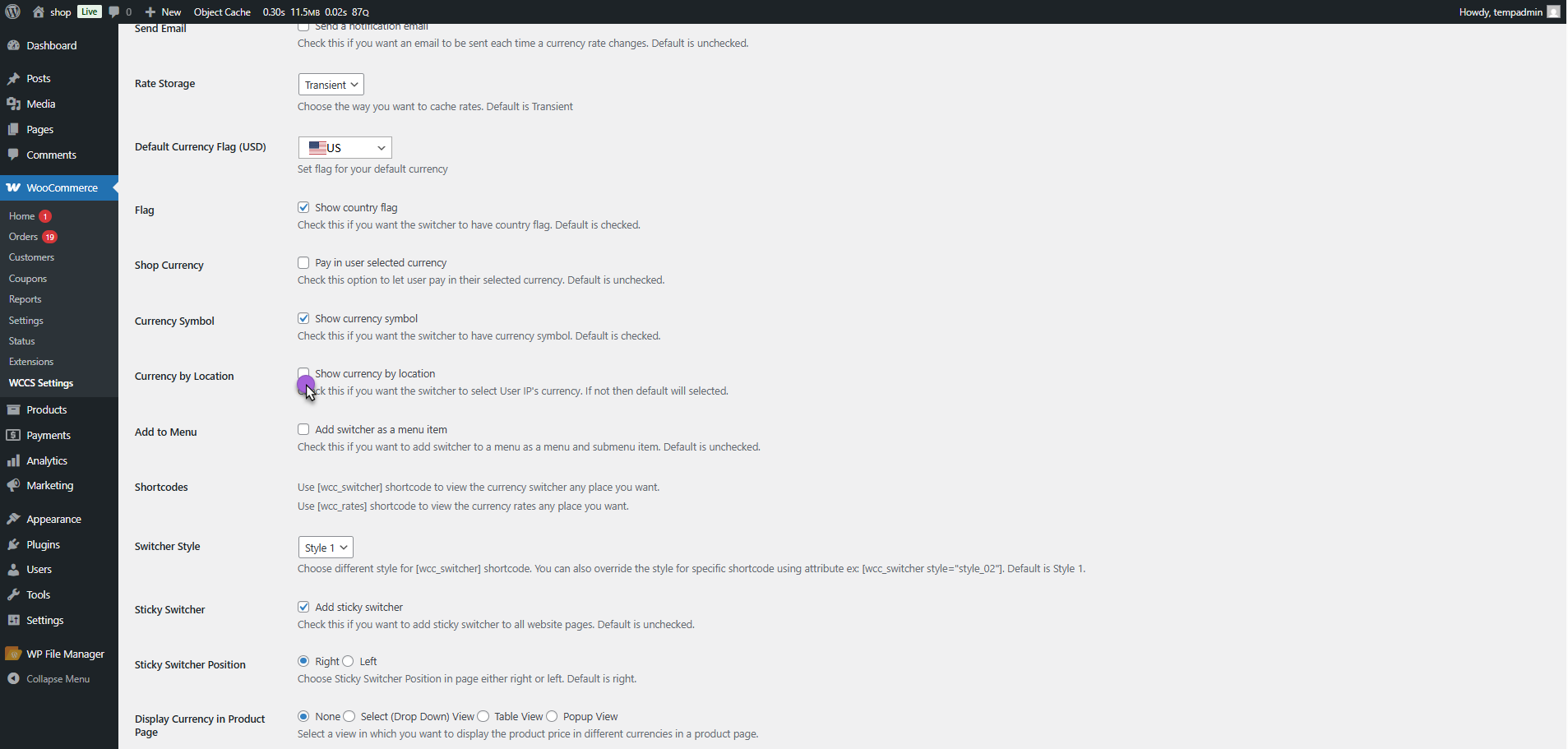
Once enabled, you’ll see a new section: Select API Type
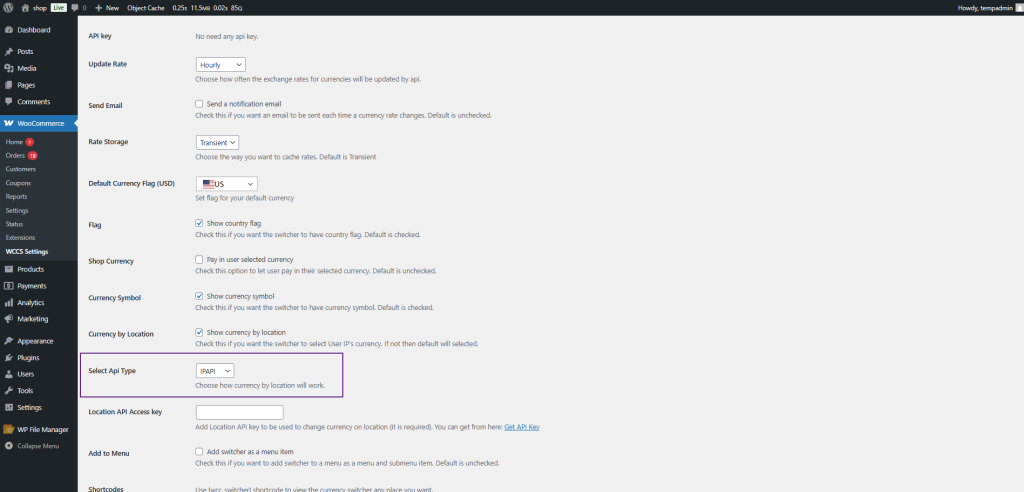
Two Location Detection Options
You can choose how your store detects visitor location from these two options.
Option 1: Ipapi (Recommended for Accuracy)
With this method, your store uses an external geolocation service called Ipapi to detect IP addresses more accurately.
Setup:
- Select Ipapi from the API dropdown
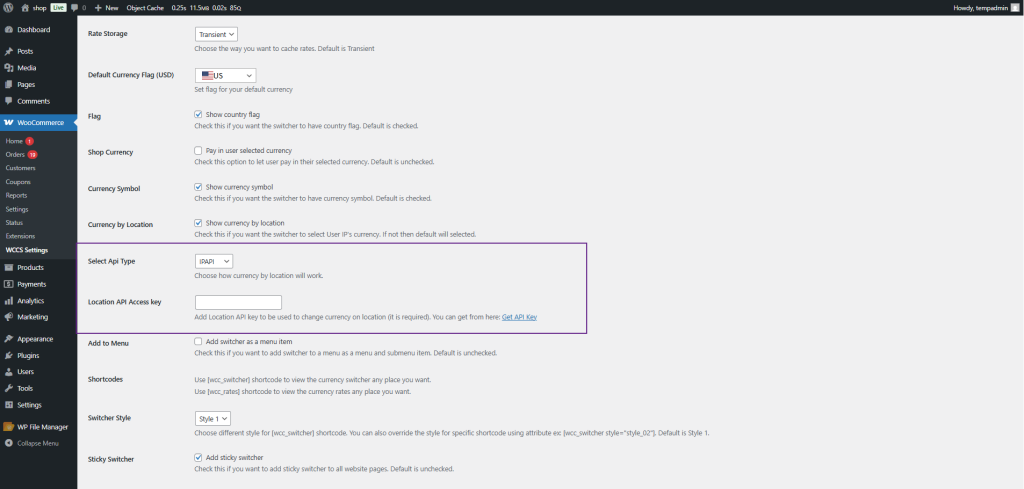
- Click Get API Key
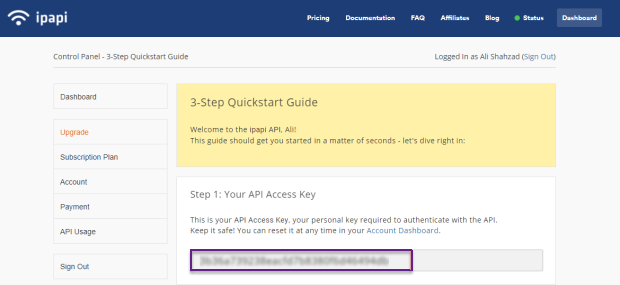
- Sign up on the Ipapi dashboard
- Copy your API Access Key
- Paste it into your WCCS settings
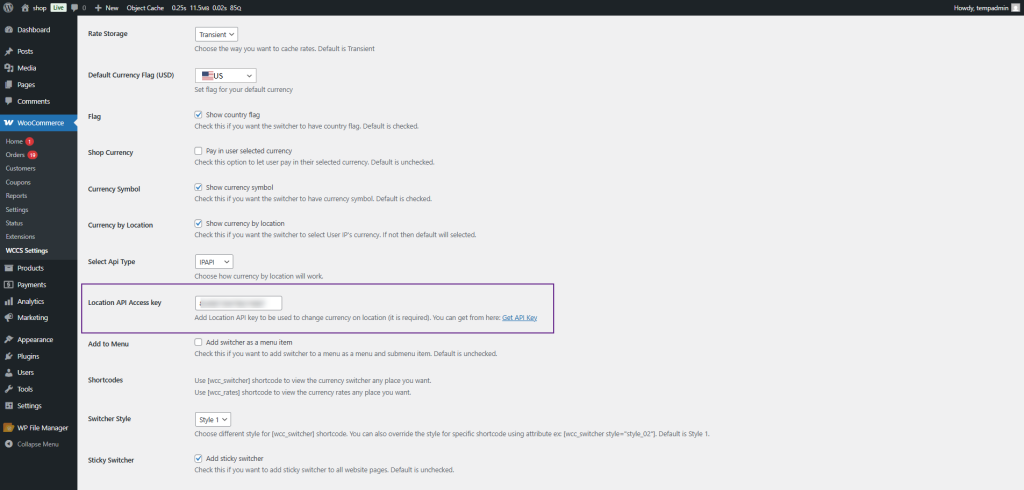
- Click Save Changes
Once saved, your store will automatically switch currency based on the customer’s IP address.
Why Choose Ipapi?
- Higher accuracy
- Better for international traffic
- Reliable detection across regions
- Handles large global audiences better
If you run ads internationally or serve multiple countries, this is the stronger option.
Option 2: Default (WooCommerce Built-in Detection)
If you select Default, the plugin relies on WooCommerce’s built-in geolocation (usually powered by MaxMind database).
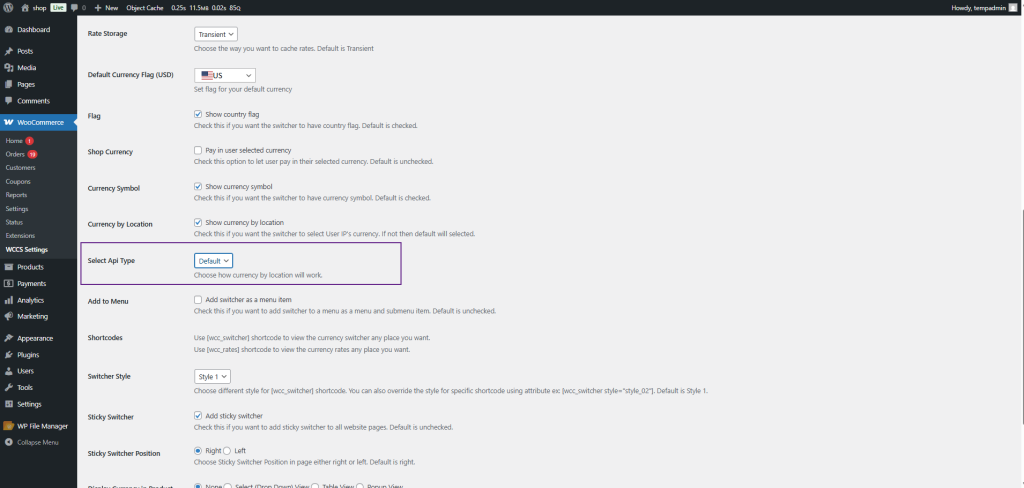
No API key required.
This method:
- Detects location using server-side IP lookup
- Automatically switches currency based on your country mapping
It works well for many stores, but it may be slightly less accurate compared to Ipapi — especially if visitors use VPNs, CDNs, or certain proxies.
Important Setup Reminder
Enabling location detection alone is not enough.
You must:
- Add all required currencies in your WooCommerce settings
- Map each currency to its respective country
If a visitor’s country does not have a mapped currency, the store will display your default currency instead. That’s why configuration is critical. We recommend that you review the complete Currency Switcher’s technical documentation. It will help you perfectly set up the multi-currency settings in your WooCommerce store. For stores that also manage wholesale buyers across different regions, the WooCommerce Wholesale Pricing Guide is worth reading alongside this setup, since currency display and role-based pricing work closely together in international B2B stores.
Final Thoughts
At the end of the day, global selling works best when the experience feels local. Automatically showing prices in a customer’s own currency removes confusion, builds confidence, and makes the buying journey smoother from the very first click. Instead of asking visitors to do mental conversions or question final costs, you’re giving them clarity upfront using a Currency Switcher add-on in your store.
Simplify pricing and remove unnecessary friction. Set up automatic currency detection, test your country mappings carefully, and let your WooCommerce store speak your customers’ language through their currency. And if your store also serves both retail and wholesale buyers, making sure each group sees the right prices goes beyond currency — how to hide prices and wholesale products from retail customers is the natural next layer of control to put in place.